You press the power button and nothing happens. Or the lights come on, the fan spins, but the screen stays black. When a laptop won't start, it's easy to assume the worst, but many causes are simple to check at home.
Here's a step-by-step guide from We Fix Phones N More to help you figure out what's going on with your Windows laptop or MacBook.
Plug something else into the outlet to make sure it works, or try a different outlet. Avoid power strips while testing. Look over the charger cable for frays, kinks or a bent tip, and make sure both ends are pushed in firmly. Many chargers have a removable cord between the brick and the wall, and that connection can work loose.
Most laptops have a small light near the charging port or on the charger. If it doesn't light up, the charger, cable or charging port may be the problem. If you can borrow a compatible charger, try it.
A battery that's been completely drained, especially after sitting unused for weeks, may need time on the charger before the laptop will start. Leave it plugged in for at least 30 minutes, then try again.
Unplug the charger and hold the power button for 15 to 30 seconds. This drains leftover power and can clear a stuck state. Then plug it back in and press the power button normally. If your laptop has a removable battery, take it out for a minute before trying again.
On a MacBook with Apple silicon, press and hold the power button (or Touch ID button) for about 10 seconds, release it, then press it again. Older Intel MacBooks have a System Management Controller (SMC) reset. Apple's support site explains the right steps for your model.
Sometimes the laptop is actually on, but the display isn't showing anything. Look and listen for clues:
If so, try turning up the screen brightness. On a Windows laptop, pressing the Windows key, Ctrl, Shift and B together restarts the graphics driver and can bring back a blank screen. You can also connect an external monitor or TV with the right cable. If the picture shows up there, the problem is likely the laptop's screen or its connection rather than the whole computer.
If you see the logo and then an error, a spinning circle that never ends, or a restart loop, the hardware may be fine but the software or storage drive is having trouble. Unplug any USB drives, docks and accessories, then restart. Windows may offer automatic repair after a few failed starts. Macs have recovery options built in.
Be careful with any repair tool that offers to reset or reinstall the system. Some options can erase your files. If your files aren't backed up, stop and get help first. Our post on hard drive warning signs explains what a failing drive can look like.
Stop trying to power the laptop on and bring it in if you notice:
A laptop that won't turn on usually still has your files on its drive. In many cases, a technician can recover documents and photos even if the laptop itself isn't worth fixing. If your files matter, tell us up front and ask about our data recovery services. Once the laptop is working again, set up automatic backups to an external drive or cloud service.
If these checks don't bring your laptop back to life, our computer repair technicians can test the charger, battery, charging port, screen and internal parts, then explain what we find in plain language. We work on Windows laptops and MacBooks, and our repairs come with a 90-day warranty. Visit We Fix Phones N More at 801 County Line Rd in Horsham, or call 215-323-4750.
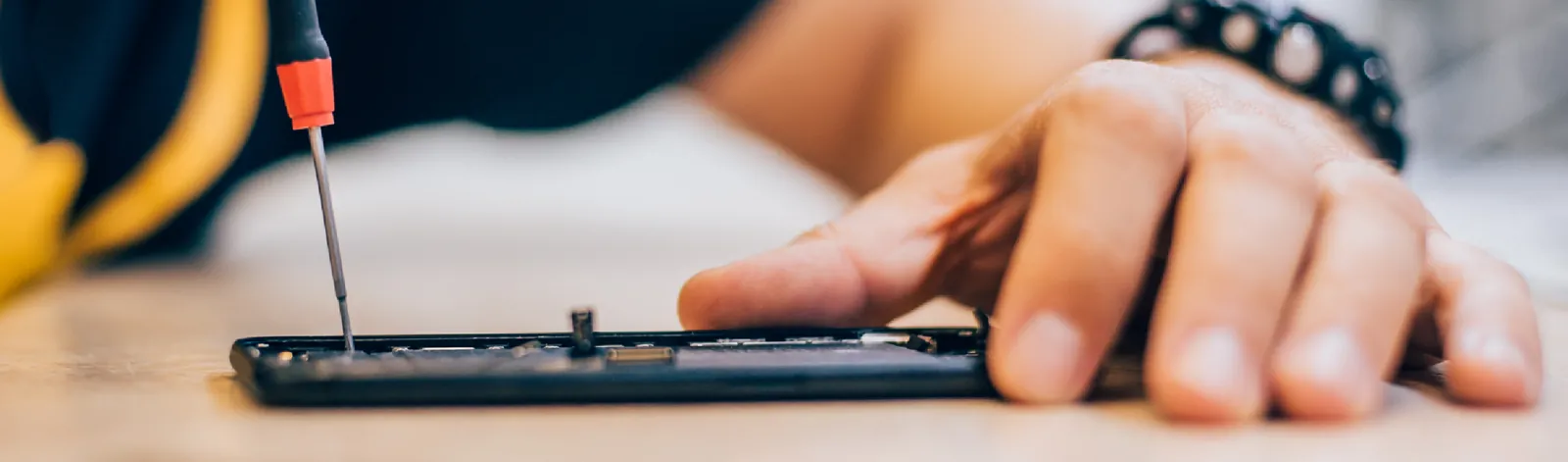
Few phone problems are as frustrating as a touchscreen that won't cooperate. Maybe parts of the screen ignore your taps, or the phone seems to have a mind of its own, opening apps and typing letters you never touched. That second problem is often called "ghost touch."
Sometimes the fix takes a minute. Other times it points to a damaged screen. Here's how to tell the difference, from the team at We Fix Phones N More.
Power the phone off, then wipe the screen with a soft, slightly damp microfiber cloth. Dry it fully. Avoid spraying liquid directly on the phone and skip harsh cleaners.
Take the case off and test the screen. If the problem continues, carefully peel off the screen protector. If the screen works normally without it, the protector was the culprit. If you bought your protector from us, remember that our screen protectors carry a lifetime guarantee, so stop by for a replacement.
A frozen screen often comes back after a forced restart.
Phone makers fix touch bugs in software updates. On iPhone, check Settings, then General, then Software Update. On Android, look for Software Update or System Update in Settings.
If the trouble started right after you installed or updated an app, try removing it. On many Android phones, you can also start in Safe Mode, which temporarily turns off downloaded apps. If the screen works fine in Safe Mode, an app is likely to blame.
Some Android phones, including many Samsung models, have a Touch Sensitivity option meant for use with screen protectors. Turning it on or off can help. On iPhone, check Settings, then Accessibility, then Touch, to make sure features like Touch Accommodations weren't turned on by accident.
Try dragging an app icon slowly across the whole screen. If it drops in the same spot every time, that area of the touch layer may be damaged.
A lifting screen deserves quick attention. A swelling battery can be a safety risk, so stop charging the phone and have it checked. Our post on signs your phone battery needs replacing covers this in more detail.
If the screen is getting worse, back up your phone now while you can still use it. If the screen barely works, a technician may still be able to help you get to your photos and contacts. Ask us about data recovery if you're worried.
If the quick fixes don't solve it, our technicians can test the touchscreen, check the battery and recommend the right repair. We work on iPhones, Samsung Galaxy phones and many other brands, and our repairs come with a 90-day warranty. Learn more about our iPhone repair and Samsung repair services, stop by 801 County Line Rd in Horsham, or call 215-323-4750.
That sinking feeling when you reach for your pocket and your phone isn't there is something almost everyone has felt. It happens more often this time of year, with crowded stores, busy restaurants and holiday travel. The good news is that modern phones have strong tools for finding and protecting them, as long as you act quickly and calmly.
Here's what we recommend at We Fix Phones N More if your phone goes missing, plus a few settings worth turning on today.
Most "lost" phones turn up close by. Before you assume the worst, call your own number from a friend's phone and listen for it. Check your car seats, coat pockets and shopping bags, and call the last store or restaurant you visited. Many businesses keep a lost and found behind the counter.
If the phone isn't nearby, sign in to its tracking service from another phone, a tablet or a computer.
Go to icloud.com/find or open the Find My app on another Apple device and sign in with your Apple Account. You can see the phone's location on a map, play a sound and turn on Lost Mode. Lost Mode locks the phone, shows a message with a contact number on the screen and pauses Apple Pay.
Visit google.com/android/find and sign in with the Google account on the phone. You can ring it, lock it, show a message on the lock screen or see its last known location. Samsung Galaxy owners can also use Samsung Find with their Samsung account.
Don't go to a stranger's home or try to confront anyone to get a phone back. If you believe it was stolen, contact the local police and share the location information. Your safety matters far more than the device.
Even a locked phone is connected to a lot of personal information. Once the phone is in Lost Mode or locked, take these steps:
Both Apple and Google let you erase a missing phone remotely. This protects your data, but it's usually a last step. Once a phone is erased, some tracking and messaging features may stop working, so try locating and locking it first. If you're confident it isn't coming back, or it holds sensitive work or financial information, erasing is the safer choice.
A phone that's protected by your Apple Account or Google account still can't easily be set up by someone else after it's erased. That built-in activation protection is one reason stolen phones are less useful to thieves than they used to be.
A few minutes of setup now makes a lost phone much less painful later.
On iPhone, go to Settings, tap your name, then Find My, and make sure Find My iPhone is on, along with Find My network. On Android, open Settings and search for Find My Device to confirm it's on.
Newer iPhones offer Stolen Device Protection, which adds extra security when the phone is away from familiar places like home or work. Many newer Android phones include theft protection settings that can lock the screen if the phone is snatched. Look for these in your security settings.
Turn on iCloud Backup or Google backup so your photos, contacts and messages are safe no matter what happens to the phone. Our guides on moving data to a new phone and recovering deleted photos explain why backups matter so much.
A six-digit or longer passcode, plus Face ID, Touch ID or fingerprint unlock, keeps casual snoopers out.
If your phone is gone for good, you don't have to pay full price for brand new. We carry quality pre-owned phones in our buy and sell section, and we can help you move your backup onto the replacement. And if your missing phone turns up later with a cracked screen or other damage, our phone repair team can take a look.
Whether you need help setting up tracking on a new phone, restoring a backup or replacing a lost device, stop by We Fix Phones N More at 801 County Line Rd in Horsham. We serve customers from across Bucks and Montgomery counties. Questions? Call us at 215-323-4750.

Tablets often become the family device. They get passed between kids and grandparents, loaded with games and streaming apps, and kept for years. Somewhere along the way, apps take forever to open, the keyboard lags behind your typing, and videos stutter.
A slow tablet can usually be sped up without buying a new one. Here's what we recommend at We Fix Phones N More, starting with the easiest fixes and working up.
Most slowdowns come from a few common causes:
Many tablets go weeks without a true restart. Turning it fully off and back on clears temporary glitches and frees up memory. On an iPad with Face ID or Touch ID in the top button, press and hold the top button and either volume button until the power-off slider appears. On an iPad with a Home button, hold the top button. On most Android tablets, press and hold the power button (or the side key on Samsung) and tap Restart.
Updates often include fixes for bugs and performance problems. On an iPad, go to Settings, then General, then Software Update. On a Samsung tablet, go to Settings, then Software update. On other Android tablets, look under Settings, then System, then Software updates. Plug the tablet in and connect to Wi-Fi before you start.
An outdated app can freeze or use more resources than it should. Open the App Store or Google Play Store and install any pending updates.
A tablet that's nearly full has less room to work. On an iPad, check Settings, then General, then iPad Storage to see which apps and files take the most space. On Android, go to Settings, then Storage (on Samsung, Settings, then Battery and device care, then Storage).
Our post on freeing up storage on your phone walks through the same ideas in more detail, and most of it applies to tablets too.
You don't need to close every app all the time, but if one app is frozen or acting strangely, closing and reopening it can help. Dozens of open browser tabs can also slow things down, so close the ones you don't need.
On an iPad, go to Settings, then General, then Background App Refresh and turn it off for apps that don't need it. On Android, open an app's settings and limit its battery or background use. Samsung tablets also have an Optimize now button under Battery and device care.
Go to Settings, then Apps, choose a slow app, open Storage, and tap Clear cache. That removes temporary files without deleting your account or saved data. Avoid Clear data or Clear storage unless you're ready to sign in and set the app up again.
If the tablet is still sluggish, a settings reset can undo odd configuration problems. On an iPad, go to Settings, then General, then Transfer or Reset iPad, then Reset, and choose Reset All Settings. Your apps, photos and files stay put, but Wi-Fi passwords and preferences go back to default. On Android, look under Settings, then General management (Samsung) or System, then Reset options.
A full erase is the last resort. Only do it after a complete backup, and ask for help if you're not sure your photos and files are safe.
Sometimes slowness is a symptom of a hardware problem. Have the tablet checked if you notice:
We handle iPad repair and tablet repair for many brands. Most iPad repairs take 2 to 3 hours, other tablets typically take 24 to 48 hours, and our repairs carry a 90-day warranty.
Very old tablets eventually stop getting software updates, and newer apps may stop supporting them. It may still be fine for reading or video, but it might be time to upgrade for everyday use. We Fix Phones N More buys and sells devices, so ask us about your options.
No. Reset All Settings on an iPad keeps your apps, photos and files. It only resets things like Wi-Fi networks, display and privacy preferences.
Yes. A worn battery can cause lag, sudden shutdowns and short run times. A battery replacement often makes an older tablet feel much better.
Most iPad repairs are done in 2 to 3 hours. Other tablets usually take 24 to 48 hours, depending on parts.
No. Both iPadOS and Android manage background apps well. Only close an app if it's frozen or misbehaving.
If you've tried these steps and your tablet still drags, visit We Fix Phones N More at 801 County Line Rd, Horsham, PA 19044, or call 215-323-4750. We'll take a look and tell you honestly whether it needs a repair, a tune-up, or a retirement plan.

It happens in a split second. An elbow bumps a mug, a kid reaches across the table, or a water bottle tips over, and suddenly there's liquid on your laptop keyboard. What you do in the next few minutes can make a big difference in whether the laptop recovers.
Here's a calm, step-by-step plan from We Fix Phones N More, plus the common mistakes that turn a small spill into a bigger repair.
Unplug the charger right away. Then shut the laptop down. If it doesn't respond normally, press and hold the power button until it turns off. Electricity flowing through wet parts is what causes the most damage, so don't stop to save your work or finish an email.
Remove USB drives, cables, a mouse receiver and anything else plugged in. If your laptop has a battery you can remove easily from the outside, take it out. Most modern laptops have internal batteries, so don't try to open the case yourself.
Open the laptop wide and turn it upside down, keyboard facing down, in a tent shape on a towel. This helps liquid run out of the keyboard instead of deeper toward the internal parts.
Gently blot the keyboard, screen and outside with a soft, lint-free cloth or paper towel. Wiping can spread the liquid around. Don't shake the laptop hard, since that can push liquid into new places.
A small splash of clean water that's caught quickly has the best chance of a good outcome. Even so, water can carry minerals that leave residue on the circuit board as it dries.
Sugary, milky or acidic drinks are tougher. They leave sticky residue that can make keys stick and keep corroding the board long after the laptop seems dry. A laptop that works fine the day after a spill can start having trouble days or weeks later because of this residue.
Even if you got lucky, keep an eye out for these after the laptop has been checked or dried:
If the laptop won't turn on, your files may still be safe on the drive. Resist the urge to keep pressing the power button. A technician can often get to the data without powering up a damaged board. If your documents and photos matter, mention that first and ask about data recovery options. Our post on hard drive warning signs explains why a current backup is your best insurance.
Standard manufacturer warranties often don't cover liquid damage, but some accidental damage plans do. If you have AppleCare+ or another protection plan, look at your options. You can also learn more about our device protection options for the future.
The sooner a wet laptop gets a professional cleaning, the better its chances. Our computer repair team can open it up, inspect the board, clean away residue and tell you honestly what we find. Our repairs come with a 90-day warranty. Visit We Fix Phones N More at 801 County Line Rd in Horsham, or call 215-323-4750 before you try turning it back on.

It always seems to happen at the worst moment. You're about to snap a photo at a school concert or a holiday dinner, and your phone says there isn't enough storage. Or a software update won't install, apps start crashing, and the whole phone feels sluggish.
A full phone is one of the most common frustrations we hear about at We Fix Phones N More, and the fix usually doesn't require a new phone. Here's how to find out what's taking up space and clear it out safely, without losing the things you care about.
Your phone needs some free space to work smoothly. It uses that room for temporary files, app updates and system updates. When storage is nearly full, you may notice:
Keeping a healthy cushion of free space helps the phone run better day to day.
Before you delete anything, find out where the space is going. The biggest culprits are usually photos, videos, message attachments and a few large apps.
Go to Settings, then General, then iPhone Storage. You'll see a color-coded bar and a list of apps sorted by size. Your iPhone may also offer recommendations here, such as offloading apps you rarely use or reviewing large attachments in Messages.
Open Settings and look for Storage. On Samsung Galaxy phones, it's under Settings, then Battery and Device Care (or Device Care), then Storage. Many Android phones also have the Files by Google app, which can suggest junk files, duplicates and large items to remove.
Photos and videos are usually the biggest storage hog. On iPhone, iCloud Photos has an Optimize iPhone Storage option that keeps full-resolution originals in iCloud and smaller versions on the phone. On Android, Google Photos has a Free Up Space option that removes copies from the phone once they're safely backed up. Before you use either one, open the app and confirm your recent photos actually finished backing up.
Deleted photos don't free up space right away. They move to Recently Deleted on iPhone, or Trash or Recycle Bin on Android, for a while first. Once you're sure you don't need them, emptying that folder gives the space back. Take a careful look before you do, since emptying it makes recovery much harder. Our post on recovering deleted photos explains how those folders work.
Years of group chats full of videos and GIFs add up. On iPhone, you can review large attachments from the iPhone Storage screen, or choose how long to keep messages under Settings, then Messages. On Android, open your messaging app and delete old threads with lots of media, after saving anything you want to keep.
Scroll through your app list and remove games and apps you haven't opened in months. On iPhone, offloading an app removes the app itself but keeps its documents and data, so you can reinstall it later and pick up where you left off.
Streaming apps often save episodes, playlists and movies for offline use. Open each app's downloads section and delete what you've already finished.
If you've cleaned up and you're still always near the limit, you may simply need more room. Paying for more cloud storage is one option. Another is moving to a phone with more built-in storage. We Fix Phones N More buys and sells phones, so stop in if you'd like to talk about upgrading. Our guide to moving your data to a new phone can help you switch without losing anything.
If your phone is slow or acting up even after you've freed up space, something else may be going on, such as a worn battery or another hardware issue. Our phone repair team can take a look, and if important photos are stuck on a phone that won't cooperate, ask about data recovery.
Not sure what's safe to delete, or want help getting your photos backed up first? Visit We Fix Phones N More at 801 County Line Rd in Horsham, or call 215-323-4750. We're happy to help neighbors from Bucks and Montgomery counties get their phones running smoothly again.
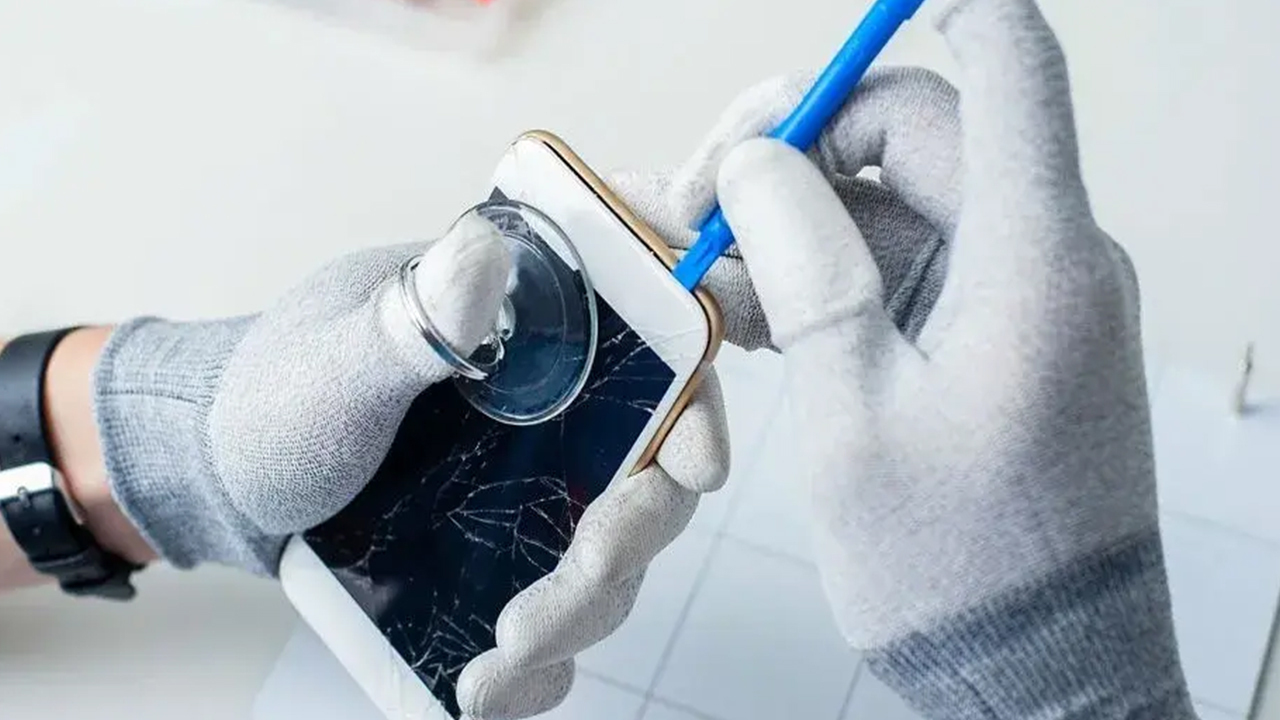
Callers keep asking you to repeat yourself. Music sounds thin or crackly. The person on the other end says you sound like you're in a tunnel. Speaker and microphone problems are frustrating because you use them all day, often without thinking about it.
The good news is that many of these problems have simple causes you can check at home. Here's how to narrow it down, and when it's time to bring your phone to We Fix Phones N More for a closer look.
Your phone has more than one speaker and more than one microphone. Testing each one helps you find the real culprit.
Play a video with the volume up to test the loudspeaker. Make a call without speakerphone to test the earpiece. Record a short voice memo and play it back to test the main microphone, then record a video with the front and rear cameras to test the others. If one test sounds bad and the others sound fine, you've narrowed it down.
A case that's shifted, warped, or poorly cut can partly cover a speaker or microphone. Some screen protectors cover the earpiece opening. Take the case off and test again. If the sound clears up, you've found the problem.
Speaker grilles and microphone holes collect lint, dust and grime over time. Gently brush them with a clean, dry, soft-bristled brush. Avoid pins, toothpicks or anything sharp that can push debris deeper or puncture the mesh. Skip strong blasts of compressed air directly into the openings, too.
If audio seems to disappear entirely, your phone may be sending sound to earbuds, a car or a speaker in another room. Check the Bluetooth settings or the audio output option during a call.
After rain, a spill or a trip to the pool, a speaker can sound muffled until it dries. Let the phone dry naturally at room temperature. Don't use heat, and skip the bag of rice. If the sound doesn't return or the phone acts strangely, our post on what to do when your phone gets wet covers the next steps.
Check that the volume isn't turned down and that Do Not Disturb or silent mode isn't on when you're expecting a ring. Restart the phone and install any pending software updates, since a glitch can occasionally affect audio. If the problem only happens in one app, check that app's microphone permission in your phone's settings.
If you've ruled out the case, debris, Bluetooth and settings and the problem remains, the speaker or microphone itself may be damaged. Watch for:
Sometimes the issue is the charging port area, since the bottom microphone and speaker sit close to it on many phones. A drop that damaged the port can also affect nearby parts. If you've had trouble charging as well, see our article on charging port problems.
We Fix Phones N More repairs speakers, microphones and the parts around them on iPhones, Samsung phones and many other models. Learn more about our iPhone repair and Samsung repair services, and know that our repairs are covered by a 90-day warranty.
If your calls sound muffled or your speaker has lost its punch, visit us at 801 County Line Rd in Horsham, call 215-323-4750, or request a quote online. We'll test each speaker and microphone and give you a clear recommendation.
Fall and the holiday season are when a lot of people upgrade their phones. Unboxing a new device is fun. Discovering a week later that your text history, two-factor codes or a year of photos didn't come along is not.
The good news is that iPhones and Android phones have solid built-in tools for moving data. The key is preparing before you start and checking your work before you wipe the old phone. Here's a practical walkthrough from We Fix Phones N More.
On an iPhone, check that an iCloud backup completed recently, or back up to a computer. On Android, look for Google backup in Settings and confirm it ran recently. Samsung owners can also use Samsung Cloud or Smart Switch to a computer. A fresh backup is your safety net if the direct transfer hiccups.
Make sure you know your Apple ID or Google account password, plus your email password. You'll need them on the new phone, and recovering a forgotten account in the middle of setup is a hassle.
Transfers can take a while, especially with lots of photos and videos. Keep both phones plugged in or well charged, and use a strong Wi-Fi connection.
Apple's Quick Start appears when you turn on a new iPhone near your old one. It can move your settings, apps and data directly from phone to phone, or you can restore from an iCloud backup during setup.
During setup, most Android phones offer to copy apps and data from your old phone using a cable or wirelessly. Samsung phones use Smart Switch for this, which works from many other Android brands too.
Moving to an iPhone? Apple's Move to iOS app on your Android phone transfers contacts, messages, photos and more during setup. Going the other way, Google offers tools to move data from an iPhone to an Android phone, and Samsung's Smart Switch can also import from an iPhone. Not everything transfers across platforms, so expect to redownload apps and set some things up again.
Give yourself a few days. Make calls, send texts, open your banking and work apps, and scroll back through your photos. Once you're confident everything is on the new phone, you can wipe the old one. Our guide to wiping your phone before you sell it covers how to do that properly, including signing out of your accounts so the next owner isn't locked out.
A working older phone can still be useful as a backup device, a kid's first phone, or something to sell or trade. We Fix Phones N More buys and sells phones, so stop in if you'd like to see what yours might be worth.
A cracked screen, a phone that won't charge, or one that won't turn on can make a normal transfer impossible. In many cases a repair to the screen, charging port or battery gets the old phone working long enough to move your data. If the phone is badly damaged, ask about data recovery before you give up on those photos and contacts.
If your transfer stalled, your old phone needs phone repair first, or you just want a second set of eyes before you wipe it, visit We Fix Phones N More at 801 County Line Rd in Horsham. Call 215-323-4750 or request a quote online. We're glad to help customers from Bucks and Montgomery counties start fresh with their new phones.
You're reading the news or checking email when the screen suddenly fills with a red warning. An alarm sounds. A message says your computer is infected, your files are at risk, and you need to call a "support" number right now. It can feel urgent and frightening, and that's exactly the point.
These warnings are almost always fake. They're designed to scare you into calling a scammer, paying for useless "repairs," or handing over remote access to your computer. Here's how to spot them, how to close them safely, and what to do if you've already engaged. We Fix Phones N More helps customers from Horsham, Warminster and the surrounding area clean up after these scams regularly.
Real security software and operating systems don't behave like these pages. Watch for these signs:
Don't click anything inside the warning, including buttons that say "Close," "Cancel" or "Scan now." Those can lead to more scam pages or downloads.
Press Ctrl + Shift + Esc to open Task Manager, select your web browser, and choose End task. If the screen is stuck in full-screen mode, try pressing Esc or F11 first. When you reopen the browser, don't restore the previous session if it offers to, since that can bring the scam page right back.
Press Command + Option + Esc to open Force Quit, select the browser, and quit it. Hold Shift when you reopen Safari to keep it from reopening old windows.
Hold the power button until the computer turns off, wait a moment, and turn it back on. It's not ideal for everyday use, but it's safer than following the scam's instructions.
Many smart, careful people get caught by these scams. If you already called, paid, or let someone connect to your computer, act quickly and calmly.
Install updates for Windows or macOS and for your web browser. Updates close the holes that some scam pages and malicious ads rely on.
Scammers sometimes buy ads that look like support pages for well-known companies. When you need help, type the company's web address yourself instead of clicking a sponsored result.
Windows includes Microsoft Defender, and Macs have built-in security features. Keep them turned on, and be cautious about "free scanners" you find through pop-ups.
Older relatives are frequent targets. A quick conversation about "never call a number from a pop-up" can save a lot of trouble.
If a scam pop-up keeps coming back, your browser is acting strangely, or someone had remote access to your computer, it's worth having it checked. Our computer repair team can look for unwanted programs, remove suspicious software and browser extensions, and help you get back to normal. If important files seem to be missing afterward, ask us about data recovery.
Stop by We Fix Phones N More at 801 County Line Rd in Horsham, call 215-323-4750, or request a quote online. We'll help you figure out what happened and what to do next.

Your computer's hard drive or SSD holds just about everything: documents, photos, schoolwork, business files and the system that makes the machine boot. When that storage starts to fail, the symptoms can look like "Windows is being slow" or "the Mac is acting weird" until one day the computer won't start at all.
Catching the warning signs early gives you a chance to back up and plan a repair before the data is gone. Here's what We Fix Phones N More wants local computer owners to watch for.
Traditional spinning hard drives (HDDs) often give physical clues. Solid-state drives (SSDs) fail more quietly, but they share some of the same software symptoms.
SSDs have no moving parts, so they rarely click. Instead you may see sudden read errors, a drive that disappears from the disk list, a computer that boots to a blinking cursor, or freezes during saves. Some SSDs fail with little notice after years of heavy use or after a power surge. That makes regular backups even more important if your only copy of important files lives on one SSD.
Copy your most important folders to an external drive or a trusted cloud account while you still can. Prioritize photos, tax documents, schoolwork and anything you couldn't recreate. Don't wait for a "full backup later tonight" if the drive is already clicking or throwing errors.
Skip big downloads, disk cleanup tools that thrash the drive, and DIY "fix" utilities that promise to repair bad sectors. Extra stress can push a dying drive over the edge.
Note any error messages, SMART alerts, unusual sounds and when the problems started. That information helps a technician decide between a straightforward drive replacement and careful data recovery work.
Bring the computer in (or call first) if you notice any of these:
If the data matters more than the machine, say so when you arrive. Sometimes the priority is cloning or imaging the drive before any repair. Other times a new drive plus a clean setup is enough once your files are safe. Our computer repair team can help you sort those options without pressure.
The people who recover most gracefully from drive failures already had a second copy of what mattered. A cheap external drive, a scheduled backup tool, or a cloud service you actually check once a month beats the most expensive recovery attempt after a total failure.
For families and small businesses around Horsham, Hatboro and Willow Grove, that habit is often the difference between a modest repair bill and a scramble to rebuild years of files.
If your computer is showing hard drive or SSD warning signs, don't ignore them. Visit We Fix Phones N More at 801 County Line Rd in Horsham, call 215-323-4750, or request a quote online. We'll help you protect your data first and then talk through repair options with a clear recommendation.
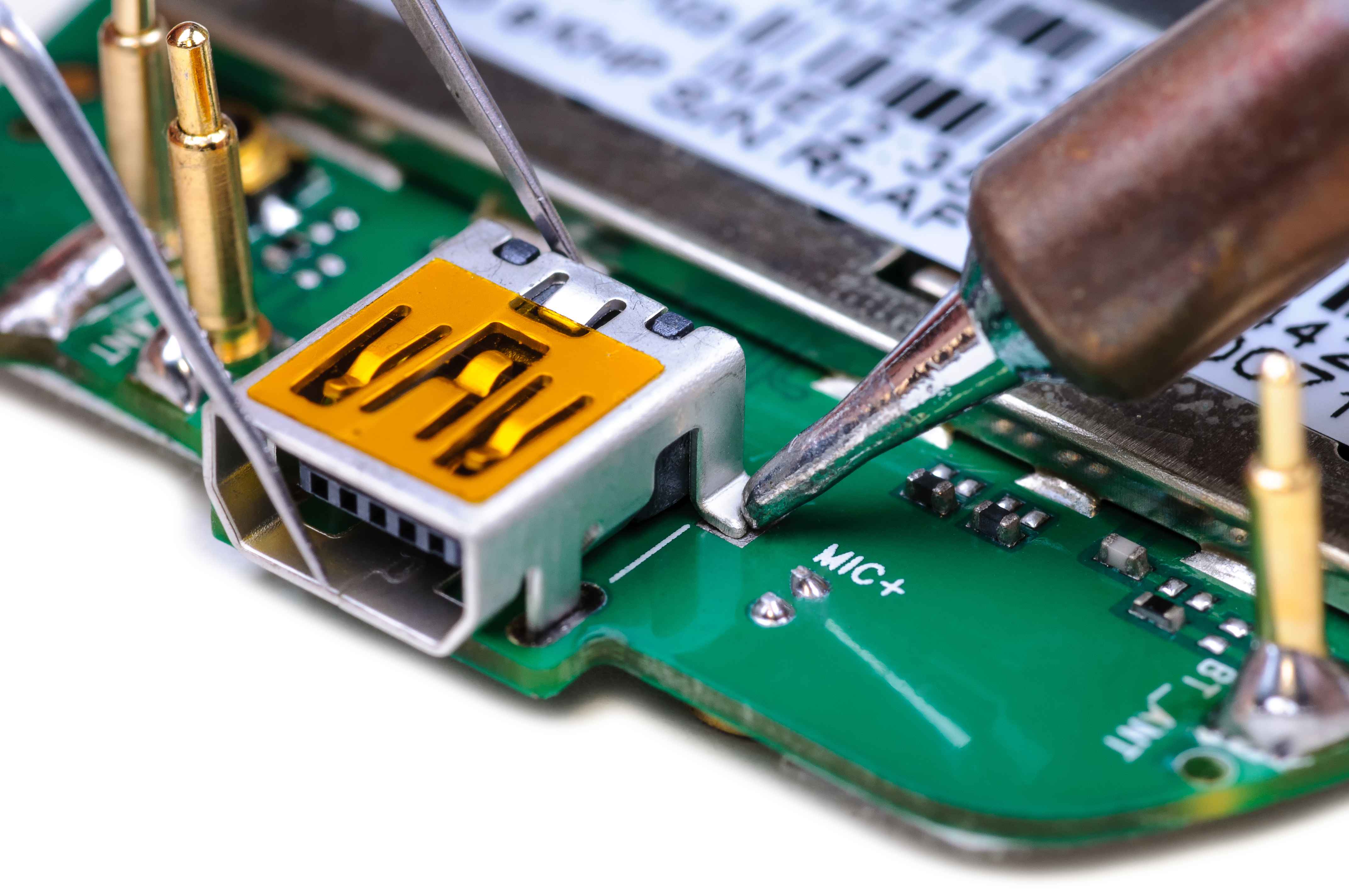
Few things spike your stress like tapping an iPad that stays black. Maybe it belongs to a kid who needs it for school, or it holds family photos and notes you haven't backed up lately. Before you assume the worst, work through a short list of checks. Many "dead" tablets wake up once they've had a real charge or a proper restart.
Here's what to try at home, what to avoid, and when to bring the tablet to We Fix Phones N More in Horsham.
Tablets can sit unused for weeks and drain so low that they need time on a charger before anything appears on the screen. Plug the iPad into a wall adapter, not a computer USB port, and leave it alone for at least 30 minutes. A computer port often delivers too little power to revive a deeply drained battery.
A frayed cable or a weak third-party charger can look plugged in while delivering almost nothing. Try a different cable and a known-good wall adapter. On newer iPads that use USB-C, make sure you're not mixing in a data-only cable that doesn't support charging well.
A charging symbol, a battery icon or a warm spot near the charging port means power is getting in even if the screen stays dark. If nothing happens after a solid charge attempt, move on to a force restart.
A force restart clears temporary software freezes without deleting your data. The steps depend on which iPad you have.
Quickly press and release the volume button closest to the top button, then quickly press and release the other volume button, then press and hold the top button until the Apple logo appears.
Press and hold the top button and the Home button together until the Apple logo appears, then release.
If the logo shows and the tablet boots, update the software when you can and keep an eye on whether it freezes again.
The same ideas apply: charge with a known-good cable and wall adapter, then try the manufacturer's force-restart combo (often holding Power and Volume Down for a set number of seconds). Check the manual or the maker's support site for your exact model if you're unsure.
Some situations are unsafe to keep troubleshooting at home:
If charging and a force restart don't bring the iPad back, the issue may be the battery, charging port, display, logic board or software that needs a deeper look. Our team handles tablets alongside phones, and if the screen stays dark but your photos and files matter most, our data recovery service focuses on getting that information off when possible.
You can start with phone and device repair or request a quote online so we know what you're dealing with before you visit.
We Fix Phones N More is happy to take a look at a tablet that won't power on. Visit us at 801 County Line Rd in Horsham, call 215-323-4750, or send a quote request. We'll tell you what we find and what the realistic options are, including our 90-day repair warranty when a repair applies.
If your phone drops from half charge to empty the moment you step outside, or it shuts off at 20% on a cold morning, you're not imagining it. Lithium-ion batteries hate the cold, and fall and winter in Bucks and Montgomery counties give them plenty of chances to prove it.
Here's what's going on, what you can do when it happens, and when a tired battery is making the problem worse. We Fix Phones N More sees this every year once the temperatures drop.
Your phone's battery produces power through a chemical reaction. When the temperature falls, that reaction slows down. The battery can't deliver power as easily, so the phone may show a sudden drop in charge, throttle performance, or shut off to protect itself even though some charge is still left.
Apple and other manufacturers design phones to work best in a fairly narrow temperature range. Once you're well below that, especially outdoors in wind and freezing air, the battery struggles. Bring the phone back inside and the percentage often climbs again, which can look confusing if you didn't expect it.
On a healthy battery, cold-related shutdowns usually reverse once the phone warms up. On a worn battery that's already lost a lot of capacity, cold weather exposes the weakness. The phone that was "fine" in July starts dying in your pocket every time you walk from the car to the store in January.
If your phone only misbehaves outdoors in the cold, you may just need better habits. If it also dies quickly indoors, shuts off at 30% or 40% on a normal day, or feels warm while charging for no clear reason, the battery itself is probably worn out.
On an iPhone, open Settings, Battery, Battery Health. Maximum Capacity shows how much of the original capacity you still have. On many Android phones, look under Settings, Battery or Device Care for similar information. Our post on signs your phone battery needs replacing walks through the everyday clues as well.
A worn battery plus winter weather is a common reason people in Horsham, Warminster and nearby towns suddenly feel like their phone is unreliable. Replacing the battery often restores the all-day use they used to have.
Overnight in a parked car can push a phone well below the temperatures it's built for. Bring it inside with you.
A battery that bulges, lifts the screen, or makes the case feel uneven is a safety issue in any season. Stop using the phone, don't charge it, and bring it in. Don't press on a swollen battery or try to pry it out yourself.
If your phone has been shutting off randomly, back up your photos and important apps while you still can. A phone that won't stay on is harder to back up later.
If cold weather has turned your phone into a short-lived gadget, We Fix Phones N More can check the battery and walk you through options. We handle phone repair and iPhone repair, including battery service, and our work is covered by a 90-day repair warranty. Stop by 801 County Line Rd in Horsham, call 215-323-4750, or request a quote online.

Laptops get warm. That's normal. But if yours is hot enough to be uncomfortable on your lap, the fan sounds like it's about to take off, or the computer shuts down without warning, it's trying to tell you something. Heat is hard on the battery, the processor and the other parts inside, and a laptop that runs hot day after day tends to wear out sooner.
Here's what usually causes overheating, what you can safely try at home, and when it's time to bring it in to We Fix Phones N More.
Most laptops pull air in through vents on the bottom or sides and push hot air out the back or side. Using a laptop on a bed, couch cushion or blanket smothers those vents. It's one of the most common causes we see, and the easiest to fix.
Over time, dust builds up on the fan and the small cooling fins it blows air through. Homes with pets can see this happen faster. Once the airflow is restricted, the fan works harder and the laptop still runs hot.
Dozens of browser tabs, apps that launch at startup, stuck updates or unwanted software can keep the processor busy even when you think the computer is idle. More work means more heat.
Inside the laptop, a layer of thermal paste helps move heat from the processor to the cooling system. After years of use it can dry out. Fans can also wear out, start grinding or stop spinning altogether.
Use the laptop on a desk or table, or on a lap desk with a solid bottom. A simple stand that lifts the back of the laptop can improve airflow too.
On Windows, press Ctrl + Shift + Esc to open Task Manager and sort by CPU. On a Mac, open Activity Monitor from Applications, then Utilities. If something you don't recognize is using a lot of power, research it before removing it. Closing extra tabs and turning off unneeded startup apps can make a real difference.
Operating system, driver and BIOS or firmware updates sometimes improve power and fan management. Let updates finish completely while the laptop is plugged in.
Shut the laptop down and unplug it. Use short bursts of compressed air into the vents, holding the can upright. Don't let the fan spin freely at high speed from the air, and don't poke anything into the vents. If you can see a thick mat of dust or you'd need to open the case, that's a good job to hand off.
A balanced or battery saver power mode can reduce heat during everyday tasks. It's a helpful tweak, though it won't fix a cooling system that's clogged or failing.
Stop using the laptop and have it checked if you notice any of these:
An overheating laptop is also a good reminder to check your backups. If the computer stops booting, our data recovery service may be able to help get your documents and photos off the drive.
If your laptop is still running hot after the basics, We Fix Phones N More can help. Our computer repair team can clean out the cooling system, check the fan and battery, and look for software that's overworking the machine. Visit us at 801 County Line Rd in Horsham, call 215-323-4750, or request a quote online.
With the holidays coming up, a lot of families start looking at used and refurbished phones. It makes sense. A phone that's a generation or two old can do everything most people need, and it's a practical first phone for a teenager or a reliable backup for a parent.
The catch is that a used phone can come with problems you can't see in a quick look. Here's what to check before you hand over any money, whether you're buying from a neighbor, an online marketplace or a store.
This is the most important check. A phone that's still tied to someone else's account may be impossible to use, no matter how good it looks.
Ask the seller to sign out of their Apple ID and turn off Find My, then erase the phone in front of you. After the reset, the phone should show the Hello setup screen. If it asks for the previous owner's Apple ID and password, walk away. Activation Lock can't be removed without the original owner.
Android phones have a similar feature tied to the Google account. The seller should remove their Google account (and Samsung account, on a Galaxy) before resetting. If the phone asks you to verify the previous owner's account during setup, it isn't ready to sell.
Dial *#06# on the phone, or look under Settings, About. Write down the number it shows.
A phone reported lost or stolen can be blocked from carrier networks. Enter the IMEI in a free checker such as the CTIA Stolen Phone Checker, or ask your carrier to check it.
Some phones are locked to the carrier they were bought from. If the listing says "unlocked," ask how the seller knows, and if you can, test it with your own SIM card before you buy.
A tired battery is one of the most common issues with older phones. On an iPhone, go to Settings, Battery, Battery Health and look at Maximum Capacity. Lower numbers mean shorter battery life. Many Android phones show battery information under Settings, Battery or Device Care. A worn battery isn't a dealbreaker, since it can be replaced, but factor it into what you're willing to pay. Our post on signs your phone battery needs replacing covers what to watch for.
Spend ten minutes with the phone before you decide.
On recent iPhones, Settings, General, About may show a Parts and Service History section listing replaced parts and whether they're genuine. A repair isn't necessarily bad, but you deserve to know about it.
Fogging under the camera lens, corrosion in the charging port, or a screen with unusual blotches can point to liquid damage that may cause trouble later.
Check that the phone can run a current version of iOS or Android. Phones that no longer get software updates also stop getting security fixes, and some apps eventually stop supporting them.
If you're meeting a stranger, choose a busy public place in daylight. Many local police stations offer safe exchange spots. Avoid paying with gift cards or wiring money, and get a simple written receipt with the IMEI on it.
Buying from a local shop takes most of the guesswork out of it. At We Fix Phones N More, we buy and sell phones and other devices, and we're happy to look over a phone you're thinking about buying elsewhere. If it needs a new battery or screen, we can take care of that too. Stop by 801 County Line Rd in Horsham or call 215-323-4750.
It happens to everyone. You're clearing space on your phone, you tap Select All one time too many, and suddenly the photos from last weekend are gone. Before you panic, take a breath. In many cases, deleted photos aren't gone right away, and there are a few places to check before you assume the worst.
Here's where to look on the most common phones, what to avoid while you search, and when it makes sense to bring the phone to We Fix Phones N More.
Both iPhones and Android phones hold deleted photos for a while before removing them for good. This is the fastest and safest place to start.
Open the Photos app and look for the Recently Deleted album under Utilities or Other. On newer versions of iOS, you may need to unlock it with Face ID, Touch ID or your passcode. Tap Select, choose the photos you want, and tap Recover. Items usually stay in this album for about 30 days before they're deleted permanently.
Open Google Photos, tap Collections or Library, then open Trash (sometimes called Bin). Select the photos and tap Restore. Photos that were backed up to your Google account generally stay in the trash longer than photos that only lived on the phone, so check soon either way.
Samsung's Gallery app has its own Recycle Bin. Open Gallery, tap the menu, and choose Recycle Bin. Many Samsung owners also use Google Photos, so check both places if you don't find what you're looking for in one.
If the photos aren't in the deleted folder, a cloud copy may still exist.
If iCloud Photos is turned on, sign in at iCloud.com on a computer and open Photos. It has its own Recently Deleted area. Keep in mind that iCloud Photos syncs, so a photo deleted on your phone is deleted everywhere, but it also lands in Recently Deleted everywhere.
Many people have more than one backup running without realizing it. Check Google Photos, OneDrive, Dropbox or Amazon Photos if you've ever installed them. Also think about where else the photo might live: a text thread, an email, a shared album or a family member's phone.
An older iCloud, iTunes, Finder or Google backup might include the photos. Be careful here. Restoring a full backup usually means erasing the phone and replacing everything on it with the older copy, which can wipe out newer photos and messages. If you go this route, save anything recent first, or ask us to help you think it through.
Sometimes the photos weren't deleted at all. The phone was dropped, got wet, or simply won't turn on, and the pictures are trapped inside. That's a different situation, and it's often more hopeful than an accidental delete, because the data may still be intact on the device.
If your phone won't power on, has a black screen, or keeps restarting, avoid repeated charging attempts on a wet phone and don't try to open it yourself. Our data recovery service focuses on getting photos, contacts and files off damaged phones, tablets and computers. In some cases a repair such as a new screen, battery or charging port is enough to get the phone running again so you can back it up. See our phone repair and iPhone repair pages for more on what we fix.
Make sure iCloud Photos or Google Photos backup is on, and check now and then that it's actually finishing. A backup that stopped months ago because storage filled up won't help much.
For irreplaceable pictures like weddings, newborn photos and family events, copy them to a computer or external drive as well. Two copies in two places is a simple habit that saves a lot of heartache.
If you're deleting to free up room, sort by large videos first and review your selection before tapping Delete.
If you've checked everything and still can't find your photos, or your phone is damaged and you need what's on it, We Fix Phones N More is here to help. Visit us at 801 County Line Rd in Horsham, call 215-323-4750, or request a quote online. We'll take a look and tell you honestly what's possible.
.jpeg)
A case protects the edges and back. A screen protector takes the scrape when your keys share a pocket, and it can absorb the first shock when the phone lands face-down. The hard part is choosing one that fits, feels good under your thumb and doesn't fight Face ID or an in-display fingerprint sensor.
At We Fix Phones N More in Horsham, we install protectors every day, often right after a phone repair or new screen. Here's how to pick one that actually helps.
Thin film protectors guard against scratches and light scuffs, and they can work well on curved screens where rigid glass is hard to seat. The tradeoff is feel and impact protection. Film can pick up fine scratches that tempered glass would shrug off, and it won't absorb a hard hit the same way.
Tempered glass is popular for a reason. A good piece feels close to the original screen, resists pocket grit and is designed to crack so your phone's display doesn't. When a tempered glass protector shatters, it has often done its job. Replace it when the cracks spread or the edges lift.
Privacy glass darkens the view from sharp angles so people nearby see a shadowy screen instead of your email. Straight on, you still see the display normally. Matte or anti-glare protectors cut reflections outdoors and hide fingerprints, with a slightly chalkier feel some people love for a stylus and others dislike for fast swipes.
A protector that doesn't match your exact model will leave gaps, cover the earpiece or sit wrong around the camera cutout. Check the model number in Settings before you buy.
Flat screens take full-coverage tempered glass well. Strongly curved edges are trickier. Edge-to-edge glass can halo or peel where the curve starts. A slightly smaller glass with a clean flat landing area, or a flexible film made for curves, often lasts longer.
In-display fingerprint readers need a protector rated for that sensor. Thick or poorly made glass can make unlock slow. Face ID and front cameras need clear cutouts and clean alignment. If unlock gets worse right after installation, the protector is a likely suspect.
Choose a protector that sits inside the case lip. A case that presses the edge of the glass will lift it over time and let dust creep underneath.
Bubble-free claims assume a careful install. Dust is usually the enemy, not the glass itself.
Wash your hands. Work in a steamy bathroom after a shower if your house is dusty, so particles settle. Clean the screen with the kit wipe and cloth, then use the dust stickers until you don't see speckles in the light.
Align the protector with the speaker and camera before it touches down. Lower it slowly and press from the center outward. Small bubbles often work to the edge. A trapped dust speck usually means lifting that corner carefully and resticking, or starting over if the adhesive is ruined.
If you'd rather not wrestle with dust and alignment, we can install one for you, including after a screen replacement on iPhones, Samsung phones or tablets.
A brand-new screen is the best moment to add protection. Our screen repairs include a 90-day warranty on parts and labor for defects or workmanship. That warranty does not cover a new crack from another drop, which is why a case and screen protector are worth putting on before the phone goes back in your pocket.
The screen protectors we carry include options with a lifetime guarantee against scratching or peeling, so you can come back for a replacement if the protector wears out under normal use. Ask us which style fits your model and how you use the phone.
Leaving a shattered protector on too long can scratch the screen underneath if grit works into the cracks. Swap it when it's clearly spent.
We're at 801 County Line Rd in the Graeme Park Shopping Plaza in Horsham, serving Bucks and Montgomery counties. Whether you need a protector installed, a cracked screen replaced or advice on a case that won't lift the glass, walk in Monday through Friday from 9am to 7pm or Saturday from 9am to 5pm, or call 215-323-4750. We'll help you choose protection that fits your phone and how you use it.
.jpeg)
An old phone still has value, whether you're trading it in, selling it or dropping it off at a shop. What you don't want to hand over is your photo library, saved passwords or the login that keeps Find My tied to your name. Deleting a few apps is not enough. You need a backup, a clean sign-out and a full factory reset.
Here's the order we recommend at We Fix Phones N More so your data stays yours.
Once you erase the phone, recovery gets much harder. Make sure the important pieces are somewhere safe.
On iPhone, confirm iCloud Photos is up to date, or copy the camera roll to a computer. On Android, check Google Photos or copy files to a computer. Open a few albums and make sure recent shots actually synced. Cloud backups can lag if the phone was low on storage or on weak Wi-Fi.
Contacts usually ride along with your Apple or Google account, but local contacts and text threads may not. Sync or export anything that lives only on the device. If you rely on WhatsApp or similar apps, use their in-app backup before you wipe.
Move authenticator accounts to your new phone first. The same goes for password managers with a local vault. Losing that second factor after a wipe is an avoidable headache.
A factory reset is not always enough if the phone is still linked to an account lock. Buyers and trade-in counters often reject devices that still show Find My or a Google Factory Reset Protection prompt.
Go to Settings, tap your name, and sign out. Turn off Find My iPhone when prompted. If you skip this, Activation Lock can stay tied to your Apple ID even after someone erases the phone. That protects you from theft, but it also blocks a legitimate buyer until you unlock it.
Remove your Google account from Settings, and sign out of Samsung or other accounts you use. On many Android phones, Factory Reset Protection will ask for the previous Google login after a wipe if you skip the sign-out. Take care of it while you still have the phone and know the password.
Unpair your watch, earbuds and car kits so they aren't trying to reconnect after the phone has a new owner.
Pop out the SIM card. If your phone has a microSD card, remove that too. They're easy to forget in a trade-in envelope, and they can hold contacts or personal files.
After you're signed out, go to Settings, then General, then Transfer or Reset iPhone, and choose Erase All Content and Settings. Stay on Wi-Fi until it finishes. You should see a setup screen, as if the phone were new.
Look under Settings for Reset, Factory reset or Erase all data. Confirm when asked, and wait for the phone to reboot to the initial setup wizard. If it still asks for the old Google account, that account wasn't fully removed. Sign in and clear it properly before you hand the phone over.
Power the phone on. You should land on language or Wi-Fi setup with no passcode, no photos and no email. If anything from your old setup appears, erase it again before it leaves your possession. Carrier trade-in portals often ask for a clear photo of the reset screen or IMEI, so keep the phone on that setup screen if you need to document it.
Clearing the gallery does not remove app data, cached logins or downloaded documents. A factory reset returns the phone to a clean system state and, on modern devices, removes access to the old encrypted data. That's the standard you want when the next person isn't you.
If a phone is broken and you can't get through the menus, don't guess. Ask for help before you sell it with your account still active. We can often help with data recovery questions or walk you through sign-out options when the screen or buttons still partially work.
Once the phone is wiped, you're ready to sell, trade or recycle it. We Fix Phones N More buys and sells devices as well as repairing them, so if you're upgrading you can ask about options on our buy and sell page. Whether you deal with us, a carrier or a private buyer, the same wipe steps apply.
We're at 801 County Line Rd in the Graeme Park Shopping Plaza, serving neighbors in Ambler, Maple Glen and Warrington. If you need help backing up or getting a stubborn account lock sorted before you sell, walk in Monday through Friday from 9am to 7pm or Saturday from 9am to 5pm, or call 215-323-4750. We're happy to help you wipe it the right way.
Few things are more frustrating than plugging in your phone and getting nothing. Before you assume the battery is dead or that you need a new phone, check the charging port. At our Horsham shop, a dirty or damaged port is one of the most common reasons a phone won't charge, and many of those cases are fixable.
Here's what to try at home, what to avoid, and when to bring it to We Fix Phones N More.
Cables wear out long before phones do. Frayed ends, bent connectors and weak chargers are everyday culprits. Test with a known-good cable and wall adapter that match your phone. If you usually charge from a laptop or car port, try a wall outlet. Wireless charging, if your phone supports it, is a quick way to see whether the phone still takes power.
A stuck charge indicator can look like a hardware failure. Restart the phone, then plug it in again. On an iPhone, a liquid detection alert means moisture is in the port. Unplug and wait until the alert clears before charging. Don't force a charge while that warning is showing.
If the phone only charges when the cable is held at a certain angle, or the connection cuts in and out, the port or cable tip is the likely problem rather than the battery alone.
Pockets collect lint. Over months, that fuzz packs into the charging port and keeps the cable from seating fully. From the outside the port can look empty, but a thin layer at the bottom is enough to block contact.
Power the phone off. Use a bright light and look into the port. If you see compacted lint, gently tease it out with a wooden or plastic toothpick, or a soft brush. Work slowly and keep the tip away from the metal pins or pads inside. Hold the phone with the port facing down so debris falls out.
Skip metal pins, paper clips and sewing needles. Those can short the contacts or scrape the plating. Avoid soaking the port with liquids or blasting it with high-pressure canned air, which can drive grit deeper. After a careful clean, try the cable again. You should feel it seat more firmly than before.
Cleaning doesn't always solve it. Ports take a beating from daily plugging and the occasional yank on the cord. Watch for:
Past liquid exposure can also leave residue on the contacts even after the phone seems dry. If the phone was wet recently, don't keep forcing a cable in. A professional inspection is safer.
If the plug stops short, something is in the way or the port is damaged. Pushing harder can break the port or the board underneath.
That partial connection can heat up or wear the contacts faster. Use wireless charging temporarily if you have it until the port can be checked.
Charging ports are often soldered or seated deep in the phone. A rushed DIY attempt can damage the logic board or battery connector and turn a straightforward repair into a much bigger job.
When the cable and cleaning aren't enough, we diagnose the whole charging path: port, flex cable, board connections and battery health. We handle this work for iPhones, Samsung Galaxy phones, iPads and many other devices on our phone repair page.
Diagnostics are free. We'll tell you what we find and give you a quote before any work starts. Every repair is backed by our 90-day warranty on parts and labor.
You can request a quote online or book an appointment. Walk-ins are always welcome.
We're at 801 County Line Rd in the Graeme Park Shopping Plaza, serving Bucks and Montgomery counties, including Warminster, Hatboro and Willow Grove. Walk in Monday through Friday from 9am to 7pm or Saturday from 9am to 5pm, or call 215-323-4750. If your phone won't charge, bring it by and we'll take a look.
That sickening crack when your phone hits the pavement is a feeling we all know. The good news is that a cracked screen is one of the most common repairs we see at our Horsham shop, and a few smart moves before your repair can keep a small problem from turning into a bigger one.
Broken glass can slice a fingertip or shed tiny shards into your pocket. If the screen is shattered, put a piece of clear packing tape or an inexpensive screen protector over it to hold everything together until your repair. Use light pressure, since pushing hard on cracked glass can damage the display underneath.
Sometimes only the outer glass is cracked and everything underneath still works. Other times the display itself is damaged. Watch for:
A drop can damage the touch layer even when the glass looks fine. Thankfully, a screen replacement fixes touch problems too, and it replaces the entire front glass no matter how badly the old one is broken.
Cracks tend to spread, and a phone that works today might be unusable tomorrow. While you can still see the screen, back up your photos, contacts and messages to iCloud, Google or your computer. With most repairs there's very little chance of losing data, but a fresh backup gives you peace of mind no matter what.
Heavy use on a badly cracked screen invites more damage. Cracks also let dust and moisture inside, and a cracked phone has lost much of its water resistance, so keep it away from sinks, pools and rain until it's fixed.
Glue and resin kits that promise to fill in cracks rarely work on phone screens and can make the professional repair harder. Online videos that show how to replace a screen yourself make it look easy, but it's easy to tear a delicate ribbon cable or damage the Face ID or fingerprint components.
If the screen is pushing up and away from the frame instead of cracking, the problem might be a swollen battery behind it. Stop charging the phone, don't press the screen back down, and bring it in right away.
We handle screen repair for iPhones, Samsung Galaxy phones and iPads and tablets, plus plenty of other models on our phone repair page. Diagnostics are free, and many repairs are done the same day.
Our 90-day warranty covers parts and labor, meaning a rare defective part or a mistake on our end. It doesn't cover new drops or cracks, so a little protection goes a long way. We carry Axiom Armor screen protectors for $30, which come with a lifetime guarantee if they scratch or peel, and a tempered glass option for $15. Pair either one with a good case and you'll be in much better shape the next time your phone takes a tumble.
We're at 801 County Line Rd in the Graeme Park Shopping Plaza, close to Warrington, Doylestown and Hatboro. Walk in Monday through Friday from 9am to 7pm or Saturday from 9am to 5pm, or call 215-323-4750 to talk about your repair.
If your phone used to last all day and now needs a top-up by lunch, you're not imagining it. Phone batteries are lithium-ion, and every one of them slowly loses capacity with each charge cycle. After a couple of years of daily use, most hold noticeably less than they did out of the box.
The good news is that a worn-out battery doesn't mean you need a new phone. Battery replacement is one of the most common repairs we do at our Horsham shop, and it can give an older phone plenty of life. Here are the signs it's time.
This is the big one. If you're charging two or three times a day with the same habits you've always had, the battery has lost a real chunk of its capacity. A quick check: if the percentage drops fast even while the phone sits idle in your pocket, the battery is likely the culprit rather than a single power-hungry app.
Your phone says 25 percent, then suddenly goes black. Or it dies in the cold, or the moment you open the camera. A worn battery can't deliver steady power when the phone asks for a burst of it, so the phone shuts down to protect itself. When you plug it back in, it often jumps right back to a much higher percentage than it should.
An aging battery can make the whole phone feel sluggish. On iPhones, if the phone has had an unexpected shutdown, iOS may turn on performance management to prevent it from happening again, which can slow apps and lower screen brightness. A new battery usually brings that speed back.
Phones get a little warm while charging, but a battery that runs hot during normal use, takes far longer to charge than it used to, or has a percentage that jumps around is telling you something. Heat also speeds up battery wear, so the problem tends to snowball.
This one is a safety issue, not just an inconvenience. As some lithium-ion batteries fail, they can puff up. Watch for a screen that's lifting away from the frame, a gap along the edge, a back that's bulging, a phone that rocks when you set it on a table, or a case that suddenly doesn't fit. If you see any of these, stop charging the phone, don't press on it or try to pry it open, keep it away from heat, and bring it in as soon as you can.
Go to Settings, then Battery, then Battery Health (called Battery Health and Charging on some models). Look at Maximum Capacity. iPhone batteries are designed to keep about 80 percent of their original capacity through hundreds of charge cycles, and most people start to notice the difference around or below that point. If iOS shows a service message, the battery is significantly degraded.
Open the Samsung Members app, go to Support, then Phone diagnostics, and run the battery status test. Other Android phones vary by maker, and some show battery health in the Battery section of Settings.
Not sure what you're looking at? Our diagnostics are free. Bring the phone in and we'll check it for you.
We replace batteries in iPhones, Samsung Galaxy phones, iPads and many other devices, and our phone repair page covers the rest of what we fix. Many repairs are done the same day, so you can often wait or run an errand in the plaza while we work. With most repairs there's very little chance of losing your data, but we always recommend a fresh backup first.
Every repair is backed by our 90-day warranty on parts and labor. It's part of why neighbors have given us a 4.9 rating on Google from 1,583 reviews.
We're at 801 County Line Rd in the Graeme Park Shopping Plaza, a short drive from Maple Glen, Ambler and Warminster. Walk in Monday through Friday from 9am to 7pm or Saturday from 9am to 5pm, or call 215-323-4750 and we'll get you sorted.
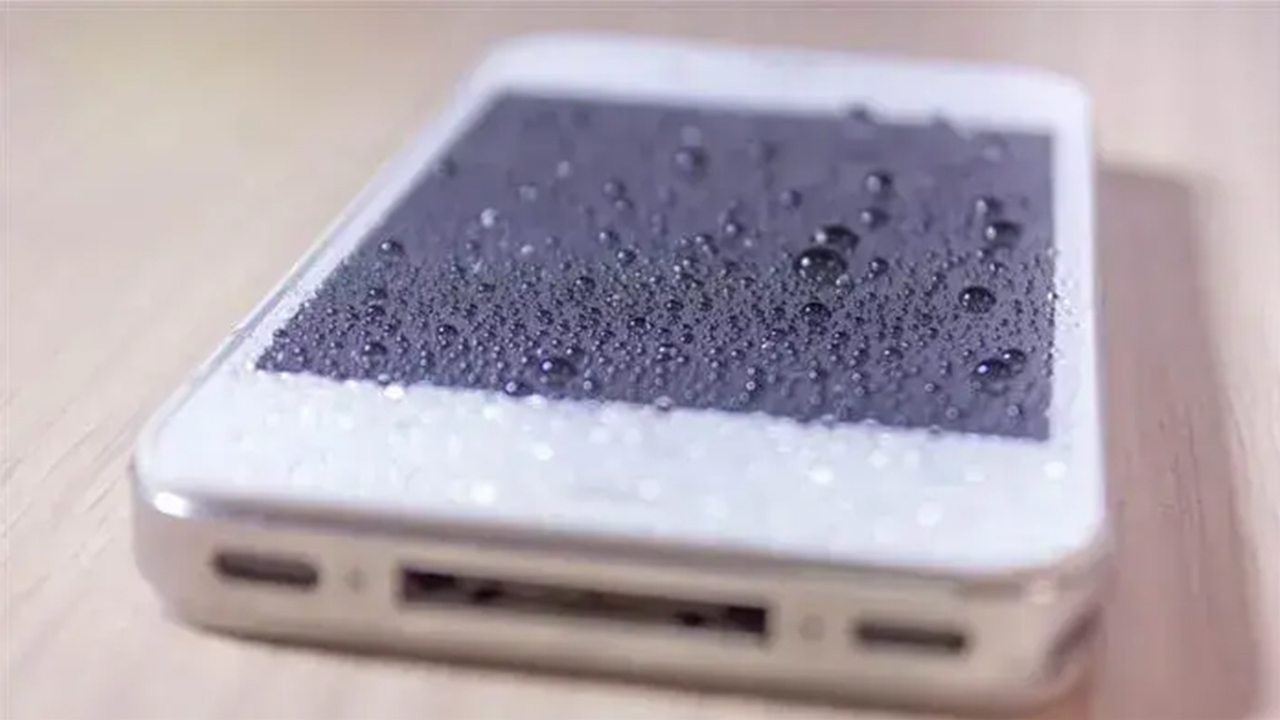
It happens to everyone eventually. The phone slips into the sink, takes a dip in the pool, or rides through the wash in a jeans pocket. What you do in the next few minutes matters more than you'd think, and a lot of the tricks people swear by actually make things worse. Here's what we tell customers who call our Horsham shop in a panic.
Pull the phone out of the water as fast as you can, then turn it off completely. Don't stop to check whether the camera still works or scroll through your messages to see if the screen is fine. Electricity running through wet components is what causes short circuits, so the sooner the phone is off, the better its chances. If it already shut itself off, leave it off. Don't turn it back on just to test it.
Charging a wet phone is one of the fastest ways to turn a fixable problem into a dead logic board. Keep it off the charger and off wireless charging pads too, even if the battery is low. Many iPhones will show a liquid detection alert when there's moisture in the charging port. If you see one, unplug and don't override it.
Take off the case, wallet or grip, and pull the SIM tray if you can do it easily. Gently wipe the outside with a soft, lint-free cloth. Holding the phone with the charging port facing down and tapping it lightly against your palm helps excess water drain out of the port.
Set the phone on a dry towel in a room with some air movement. A fan blowing room-temperature air nearby is fine. Then resist the urge to keep checking it.
The rice trick is the most famous wet-phone myth out there. Rice doesn't pull moisture out of the inside of a phone any better than open air does, and it can leave starch dust and tiny grains in the charging port and speaker openings. Apple specifically recommends against it. Meanwhile, the hours spent waiting on the rice are hours that corrosion is working on the circuit board.
Heat feels like it should help, but a hair dryer, space heater, oven or microwave can warp adhesives, damage the screen and stress the battery. Compressed air is no better, because it can push water deeper inside the phone. Leave the can in the drawer.
Cotton swabs, paper towels and toothpicks can leave fibers behind or bend the delicate pins in the charging port.
Most newer phones carry a water resistance rating, but that protection wears down with age, drops and past repairs. Salt water, pool water and sugary drinks are especially rough on electronics because they leave residue that keeps corroding the board after the phone dries out. If your phone went swimming in anything other than fresh water, get it looked at quickly.
Even when a wet phone seems fine after drying, moisture and mineral residue can stay trapped on the logic board. Corrosion can show up days or weeks later as a charging port that stops working, a speaker that crackles, or a phone that suddenly won't turn on. Our technicians open the device, inspect the board and treat corrosion before it spreads.
Water damage repair is something we handle for iPhones, Samsung Galaxy phones and iPads, and you can see the rest of what we fix on our phone repair page. We'll be honest with you: water damage is unpredictable, and not every phone can be saved. That's why our diagnostics are free. We'll look the device over, tell you what we find, and give you a quote before any work starts.
Sometimes the phone itself isn't the priority. It's the pictures of the kids, the voice memos or the work files that never got backed up. We Fix Phones N More is an authorized SalvageData partner, so if a water-damaged phone can't be repaired, we can walk you through your data recovery options. Until then, keep the device powered off, since every attempt to turn it on risks more damage.
Once you're back up and running, turn on automatic backups through iCloud or Google. That way the next accident is just an inconvenience.
We're at 801 County Line Rd in the Graeme Park Shopping Plaza, an easy drive from Warminster, Hatboro and Willow Grove. Walk in Monday through Friday from 9am to 7pm or Saturday from 9am to 5pm, or call us at 215-323-4750. The sooner a wet phone gets to us, the better its chances.
Ever since the introduction of the touchscreen smartphones, one of the most common problem that smart phone users have to deal with is a cracked screen. The Apple iPhone is no stranger to a cracked screen and seems to be more prone to damage.
Smartphone screens can only withstand accidental and minor bumps here and there. A major fall can crack and destroy the screen which sometimes render the smartphone useless. All vital functions on a smartphone are primarily done on the screen.
Through the years, touchscreen smartphone manufacturers have tried to make the screens thin yet durable. But despite the efforts, screens are still not 100% resistant to cracking.
Apple’s iPhone, notwithstanding the technology applied to the smartphone, is still not impervious to cracked screens. In fact, cracked iPhone screens are so common that third party repairs have sprung up almost everywhere.
It does not help that cracked iPhone screen replacements are generally not cheap when done by Apple. Third party repair providers offer screen replacement at a cheaper price for the same quality.
Surprisingly though, Apple has became less strict in its screen repairs. Just September of last year, the company lowered the price of its screen replacement. Before, iPhone models under the AppleCare+ could have its screen fixed for a cost ranging from $79-$99. Now, the screen replacement costs only $29.
If the iphone is out of warranty, the third party repair is more appealing since Apple screen replacements will range from $129 to a whooping $279. By making screen replacements for certain iPhone models in a flat rate of $29, Apple has also increased the attractiveness of the AppleCare+ program.
Aside from lowering the price of screen replacements, Apple has also lifted its policy against third party screen repairs. The policy used to state that an iPhone’s warranty is void whenever the device had a third party display. Apple would then will not perform any repair or warranty the device.
However, early in 2017, Apple had a change of heart. The tech company has rolled out a memo which tells Apple retail employees that an iPhone’s warranty is no longer void even if the device’s screen is repaired by a third party cell phone repair shop.
Under the new policy, an iPhone can still be repaired by Apple even if the device’s screen has been previously fixed by a third party repair provider. However, this policy does not apply to all kinds of repair.
If the repair done by the third party caused damage to the device, then the user has to pay the out-of-warranty price. Additionally, if the repair is related to the display, then the cost of the next repair at an Apple store or any authorized shop is at the out-of-warranty price.
Under the memo, before proceeding with the repair of anything not related to the display, the Apple retail store employees or Apple authorized service providers should inspect the iPhone unit for signs of fraud or tampering. As mentioned above, if the repair to be done is due to a damage caused by the display fix done by a third party, any repair by Apple will be considered out-of-warranty. This includes replacing any parts that the third party service provider has installed.
AppleCare+ will simply not cover any repair or part replacement related to the repair done by a third party service provider. The worst case scenario is that Apple will refuse to repair it.
The memo released by Apple unfortunately applies only to repairs in the United States, Canada, and certain regions. To ensure that your region is included, check out Apple's repair terms and conditions before getting your iPhone repaired by a third party service provider.
Until now, Apple has not released any official statement regarding the reason behind the sudden change in its screen repair policy. Nevertheless, consumers can breathe a sigh of relief knowing that they can get their iPhone’s screen repaired anywhere else without worrying about voiding the warranty.
Additionally, it seems that Apple is also inviting more consumers to replace their screens at authorized service providers by making it cheaper to do so. Consumers can get Apple authorized repairs and parts with the new $29 tier price on all the recent models from iPhone 6 to the iPhone X.
In the end, consumers are presented with a lot of options for their screen replacement needs. This ensures that users of iPhone's can use and enjoy their units longer since getting screen repairs will be easier.
You should be cautious of getting repairs from just any third party service providers. Because of the caveat that Apple has put in its screen replacement policy. An iPhone user must first ascertain that the third party service provider does quality screen repairs.
If the third party service provider damages the device further, then the user will be the one ultimately bearing the burden of the repair. Therefore, before heading out, follow these steps:
Here at We Fix Phones N More we pride ourselves on the repair work that we do. We have great reviews from our many customers who trust us to repair their iPhone's.
Read our reviews on Yelp, Google and Facebook then give us a call when you are ready to repair your iPhone. Most iPhone repairs take only 20-30 minutes and you do not need to make an appointment.
Please share this article and leave a comment below if you found it useful or informative. We love to hear from our customers.
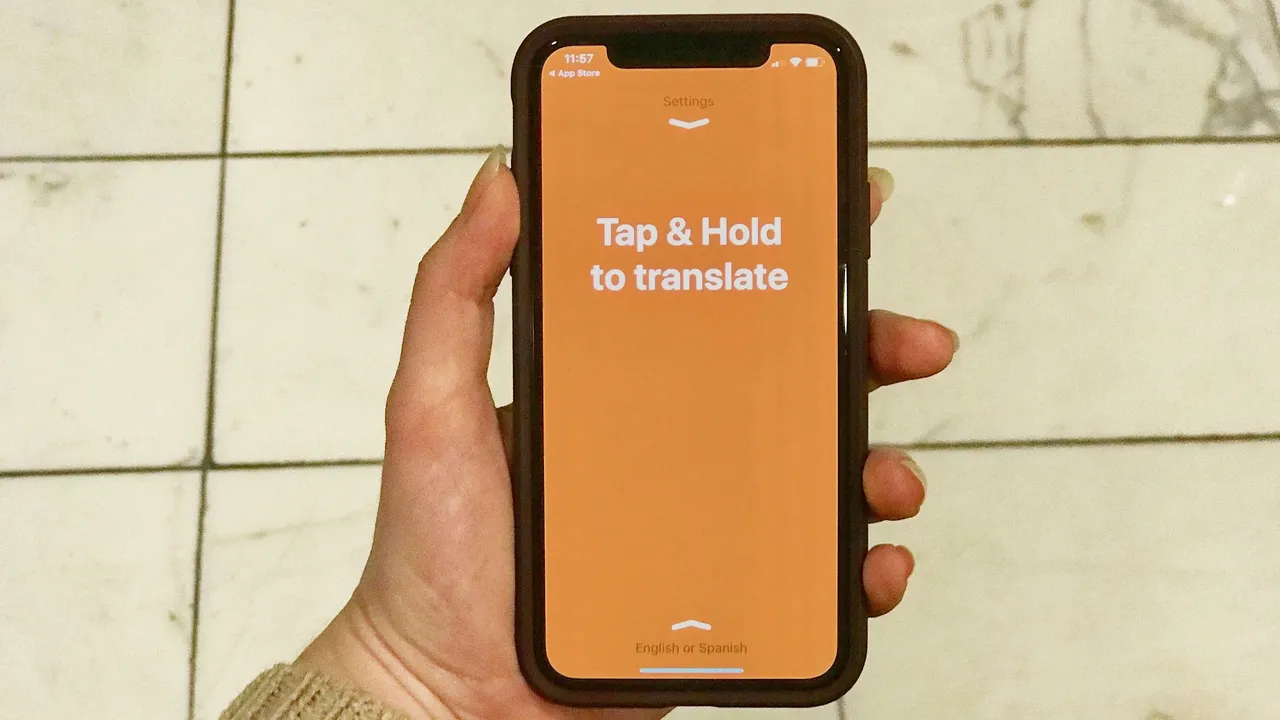
A staple of many science fiction novels and movies, the universal translator is now a reality. Unlike Douglas Adams and Murray Leinster imagined, they are not implantable devices or ingestible microbes, but useful apps that can be accessed through your smartphone.
Universal translators convert speech or text into another language and they generally work in one of two ways. Some use the power of the internet for an instantaneous translation, and others use a downloaded dictionary.
Determining which is best largely depends on your connectivity while abroad. If you happen to have cell and internet service while traveling, your options are endless. If you opted to travel without an international cell plan, a pre-downloaded, searchable dictionary is the best option for you.
One of the best free options is iTranslate. iTranslate requires an internet connection to access the 90+ languages, however, it does offer a more limited downloadable version. Both are free to download, though it does contain ads. iTranslate Voice is a similar version of this app with a feature called AirTranslate, which allows the user to sync two devices. Once synced, one person can speak into their device in their native language and their words are translated and played aloud on other person’s device. In this way, person-to-person communication is possible despite language barriers. iTranslate Voice is available in 40 spoken languages at this time.
Google has an offering in this category as well. Much like iTranslate, Google Translate offers both an internet and offline option. Over 100 languages are available for text translation, while 32 offer instant speech translation. One feature that makes the Google option extra useful is “camera mode”. This option allows you to take a picture of written text, including signs, directions, and other messages, and translate that information. Currently, this is available for 37 languages.
Other options to consider are Easy Language Translator with 100+ languages, speech-to-text and text-to-speech features and Microsoft’s Skype Translator. Skype Translator works online only through the Skype program. It offers translations for 8 spoken languages and over 50 written languages, with more to come over time.
Even with all these amazing developments, current translator apps do have some downsides. Namely, these apps do not yet replace the fluency or nuances of a learned language, nor the inflections of speech. This can lead to confusion as most of these programs translate each individual word not the phrase as a whole. So while someone may say: “Estás aqui, estás a comer” and your app may translate it as “you are here, you are eating”, it’s idiomatic meaning in Portuguese is “I’m going to hurt you”. So it’s always a good idea to have more than one translating option or to know the general language structure of a country before visiting it.
Despite possible restrictions, this technology takes us one step closer to a more connected world.
Over time mobile devices and other electronics that work off a software will begin to develop issues and show signs of aging. With the iPhone you will begin to notice issues after about two years of owning the phone. Unfortunately, these are things that cannot be avoided and the only solution is to upgrade to the newest version. However, there are tricks and tips that will help keep your iPhone lasting longer with fewer issues. Check out these easy iPhone repair tips to keep your device running smoothly.
We know this may sound like a no brainer, but this is a crucial aspect to ensuring that your phone is optimized. Many of the apps require the latest update to run all the features. By not having the current update, your phone can slow down and some of the apps may not function properly. The only thing needed to update your phone to the latest software is WiFi connection and the right amount of space.
We know it can be difficult to let go of old pictures and texts, but doing so can greatly help out your iPhone. Your texts, images and music take up the most storage on your phone. Getting rid of old items can free up your phone for updates and can even improve the overall speed of your device.
Today, most people utilize their phones for everything. From work to personal, your phone can be used all throughout the day. The only time we do not use our phone is when we are sleeping and even then a majority of people will leave it on while it charges and use it as an alarm clock. The issue with keeping your phone on is the hardware can break down much quicker. Your phone can overheat and this can damage the hardware inside leading to problems in the future.For major issues and quick and skilled iPhone repair, stop by We Fix Phones N More today!
Apple is trying to improve parental controls on their devices to curb how long and how youngsters and teenagers use their devices. Until Apple implements these controls, there are ways that you can restrict access and have some level of control over your child’s device. Access “settings,” navigate to “restrictions,” and tap “enable restrictions.” You’ll need to enter a four digit pass code to prevent unauthorized changes.
Scroll down to “Allowed content” to prevent your child from buying TV-MA or R-rated shows or movies. It’s also possible to choose custom content ratings for books, apps, and even podcasts.
This section allows you to see what apps have access to location services. You can also modify if your child can make changes to permissions of certain apps. Don’t forget to look at apps with access to photos and restrict anything you haven’t heard of or if it seems suspicious, which can indicate apps that might require cell phone repair.
Tap “allow” for apps you want your child to have access to. You might not want them to use the Internet browser, which requires disabling Safari. You can also set limitations such as blocking access to the camera, restricting installing apps, or making purchases inside accessible applications.
Scroll down and you’ll see the ability to disable the option to make changes to apps. Don’t forget to enable “Do not disturb while driving” if your child is of driving age to prevent them from texting or using their device behind the wheel.
Under the family sharing setting, check “location sharing.” This allows you to locate where your child is, if they have their phone, or help find it if they happen to lose it.
Multiplayer gaming can be fun, but it’s also likely to lead to poor sportsmanship or foul language. This lets your child play games, but not in an online environment. Implement further restrictions by disabling the option to add friends.
Add your child to Family Sharing to control, view, or disable app store purchases. You can also share app purchases with the rest of your family. You will need to create an account for any child under 13, and you’ll receive a notification to approve or deny your child’s request to make a purchase in the app store.
One of the most annoying things that can happen when using your computer is when it crashes or if you get an error message when trying to complete a task. Diagnosing computer problems can be frustrating, especially if you’re not computer savvy, but here are five of the most common problems computer users experience.
You might not be able to install a program if you don’t have enough free space on your system. Your computer might not meet the minimum system requirements either. Delete files or folders you don’t need any more such as duplicates, data for programs you’ve already removed, or temporary files.
Dynamic-Link Library or DLL files are responsible for certain functions in your operating system. If one gets deleted or corrupt, your PC might not know how to react. You might not be able to perform functions such as saving or opening files. Try restoring your computer from a backup point to restore important system files.
A BSOD or a stop error turns your entire screen blue and gives an error. It can appear unexpectedly and for numerous reasons including corrupted files, software problems, or driver errors. Write down the error and code, then turn your computer off and back on again to get back to what you were doing. If you experience this frequently and can’t pinpoint the cause, it will be beneficial to seek out someone who performs computer repair.
If your computer starts running slower than usual at the pace of a turtle, it likely indicates that you have a problem with a specific program or your computer’s operating system. Try cleaning up the files on your computer and delete programs or files you’re not actively using.
Application problems make it difficult to be productive. If a program starts acting strange, such as showing odd titles, or items have disappeared, you might fix the issue by restarting the program or computer entirely. Consult the user manual or do a quick Internet search through Google to determine if other users are experiencing the same issues.
You might benefit from using system repair software if simple corrections can’t fix the problems you’re dealing with. It can accomplish these everyday repair tasks and more, limiting how much work you have to do before getting back in business.
Are you one of the Apple users impacted by the recent battery fiasco? A software fix is on the way if that’s the solution you’ve been seeking. Last year Apple apologized to users for slowing down performance on older iPhones when software updates were released. They also drastically reduced the price of a replacement battery from $79 to $29. The iOS update will give more information about your iPhone battery’s overall health and how it’s impacting your user experience.
The biggest feature users can look forward to is the ability to disable the automatic throttling that Apple implemented without the user’s knowledge that might have led to seeking iPhone repair. Apple defended the action by reasoning that throttling would help overall performance by preventing or reducing the number of app and phone crashes due to a weak battery.
The discovery created lawsuits that sprung up all over the country and anger with Apple users who felt that they had been tricked. They thought it violated their contract and the actual intent was because they wanted users of older phones to upgrade earlier than intended. Apple vehemently denied the claim.
Individuals impacted by the actions have been waiting for a fix if they didn’t opt to take advantage of the deep discount for a new battery. The ability to look at battery statistics was introduced with the latest release, iOS 11.3, which is available for users who want to subject their device to a beta version that isn’t as stable as the previous version. If this sounds appealing to you, continue.
Back your device up to the iCloud in case something goes wrong during the process. You don’t want to lose any important information. Go to beta.apple.com and opt to enroll in the Apple beta program. Install the update and go to “settings.” From there, tap on “battery” and then “battery health (beta)” to look at how your current battery performance stands. The feature is expressed as a percentage of its capacity compared to what it’s rated for. A link inside the setting sends you to a website to learn about lithium batteries and how they gradually decline in performance over time.
The “performance management” feature will be turned on if your phone has been throttled, but there’s no way to disable it unless it’s been activated already. If it has, you can tap “disable” to prevent it from occurring again. Apple mentioned that, over time, all batteries would need to be replaced in phones because they do deteriorate. The regular update of iOS 11.3 is expected to launch in the spring.
This becomes a very important question in the seconds after you dropped your phone in water. The answer is, sometimes. Cell phones, just as many other electronic devices do not take well to water. But what you do in the minutes after your phone is exposed to water can make the difference in its survival.
Here is some advice that may save your phone.
Remove it from the water as soon as possible and power it off; this can make a huge difference in whether your phone will ever work again. Warning: If your phone is connected to a charger and plugged in DO NOT reach in and take it out of the water.
Dry the exterior of your phone off and then take it apart and remove the battery. Take out your SIM card and any memory cards as well as disconnect it from any peripherals such as headphones. Dry all components with a dry, soft cloth. Remove as much moisture as possible. Try not to tilt or move the phone much as this can move moisture around in inaccessible areas causing further damage.
DO NOT use a blow dryer on your phone, even on the cooler settings. Not only can the heat cause further damage by melting components, but the forced air can push water further into the phone and the condensation caused by the heat can also compound your troubles.
Skip the bag of rice. Rice doesn’t pull moisture out of the inside of a phone any better than open air does, and it can leave starch dust and tiny grains in the charging port and speaker openings. Apple specifically recommends against it. Instead, keep the phone powered off and off the charger while it dries somewhere cool and dry.
Leave the phone on a clean, dry paper towel for several hours. Check it every couple of hours to see if it is still dry.
Once you are SURE that there is no sign of moisture replace the battery and put it back together. Now after doing a quick dance for the phone gods try powering it up. If it works you are probably good to go. If it still isn’t working check to see if the battery is bad by removing the battery and plugging the charger in. If it works using that method you may just need a new battery.
Before you toss your phone out it is well worth the effort it takes to bring it into our shop and let them take a look at it. Their experienced technicians can determine if the phone can be repaired, and even if it seems fine, a professional cleaning can catch corrosion before it causes problems days or weeks later. As experts in the field they are the premier stop for cell phone repair in Horsham, PA. Remember, act fast and act smart, and you may avoid replacing an expensive cell phone.
No matter how long your iPhone’s battery lasts, getting more mileage out of it is always better. After all, most of us use our iPhones for nearly everything these days: reading emails, taking photos, streaming videos, browsing, paying by Apple Pay and even actual phone calls. A dead battery can bring life to a halt, so conserving that power can help you keep your life on track.
In iOS 9, Apple introduced a way to get an extra three hours of battery life. The catch: The Low Power Mode doesn’t actually kick in until you’re down to 20% battery life. Once the charge reaches a critically low level, a warning appears, along with the option to enable Low Power Mode. Once Low Power Mode is enabled, the power indicator goes from the ominous red to a less-worrisome orange. The reason that Low Power Mode works so effectively is that it shuts down unnecessary background apps. You can automatically enable this mode by going: Settings > Battery > Turn on Low Power Mode.
In both iOs 8 and iOS 9, you can get a better handle on battery life by simply finding out which apps consume the most juice. To do this, go to: Settings > General > Battery to view a list of apps that you’ve been using in the last day or last week. The apps listed at the very top are the ones that are causing the most battery drain. Expect Safari to be near the top of the list, but many other apps like Facebook are power hogs, too.
Naturally, reducing use of these apps will help reduce drain, but there is another way to manage the damage done by these apps. Go: Settings > General > Background App Refresh. You can then turn off background refreshing for the biggest battery-draining apps. After all, not every one of those apps needs up to the minute updates on your whereabouts anyway!
Some lock screen notifications are absolutely essential, but many are not. The more notifications you get, the faster your battery is draining. Navigate to your notifications menu from the settings page. Once there, you can go down your list of apps to disable notifications from the ones that you really don’t need to see immediately. This can greatly improve battery life.
The display on iPhones today is so bright that it rivals a MacBook Air’s brightness. However, the battery on the iPhone is much smaller and less equipped to handle that kind of power drain. Navigate to your brightness menu by: Settings > Display > Brightness. Slide the brightness bar down as low as you find tolerable. The lower you go, the longer your battery will last.
Many iPhone users have Bluetooth enabled without needing it (or even realizing it’s on.) Bluetooth is a major battery hog, and for most people it’s just not necessary. If you don’t currently use Bluetooth headphones or other accessories, turn your Bluetooth off by navigating to the Bluetooth options from the Settings menu.
Of course, there may be times when prolonging your iPhone’s battery life is the least of your problems. When your iPhone screen shatters, if your battery dies for good, or when any tech-related emergency pops up, call us. We are a team of tech experts who can repair any broken device, from the iPhone and iPad to the Galaxy, Nokia, Blackberry, HTC, LG and more.


Copyright © 2026 We Fix Phones N More. All rights reserved.