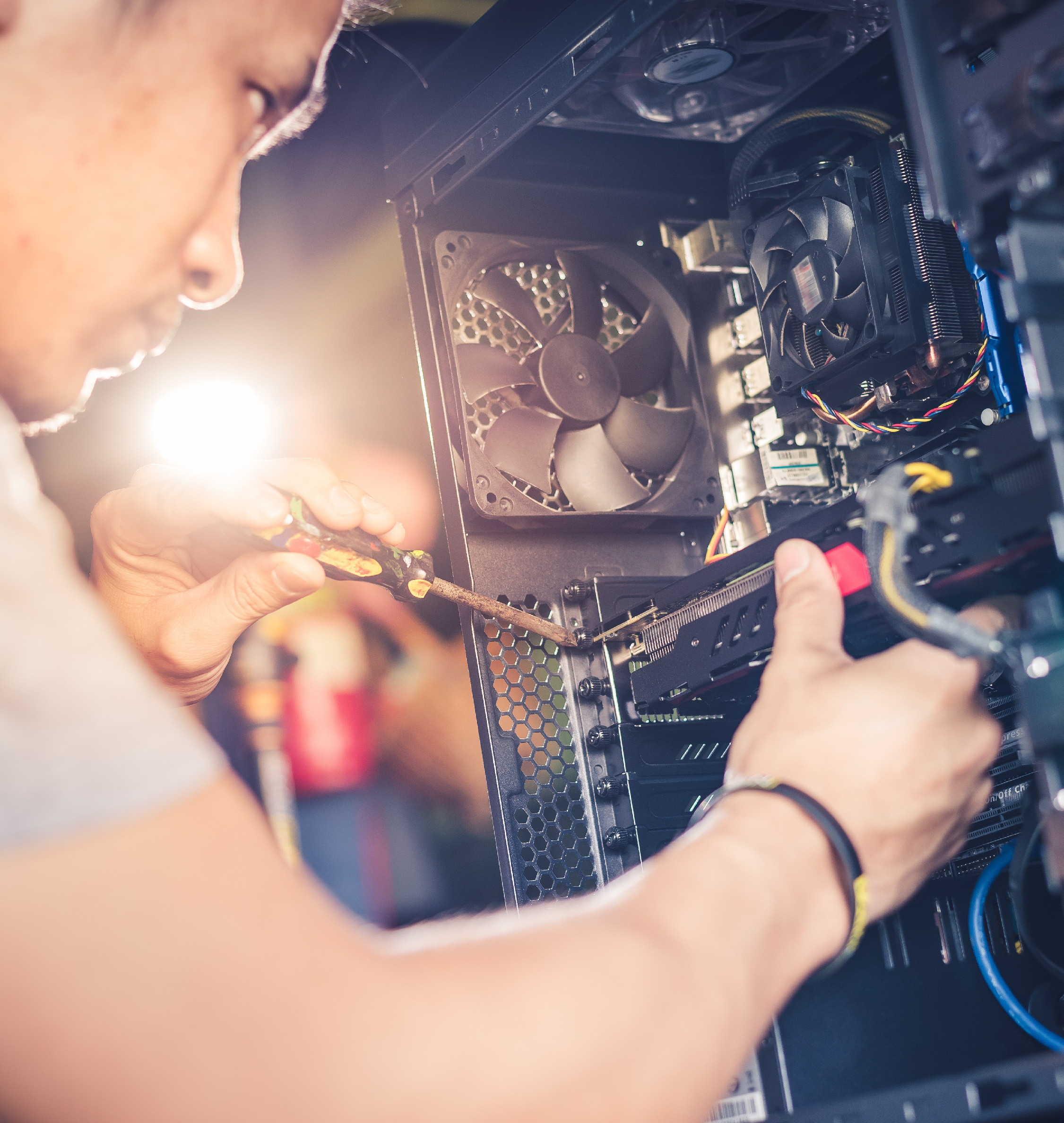
Laptops get warm. That's normal. But if yours is hot enough to be uncomfortable on your lap, the fan sounds like it's about to take off, or the computer shuts down without warning, it's trying to tell you something. Heat is hard on the battery, the processor and the other parts inside, and a laptop that runs hot day after day tends to wear out sooner.
Here's what usually causes overheating, what you can safely try at home, and when it's time to bring it in to We Fix Phones N More.
Most laptops pull air in through vents on the bottom or sides and push hot air out the back or side. Using a laptop on a bed, couch cushion or blanket smothers those vents. It's one of the most common causes we see, and the easiest to fix.
Over time, dust builds up on the fan and the small cooling fins it blows air through. Homes with pets can see this happen faster. Once the airflow is restricted, the fan works harder and the laptop still runs hot.
Dozens of browser tabs, apps that launch at startup, stuck updates or unwanted software can keep the processor busy even when you think the computer is idle. More work means more heat.
Inside the laptop, a layer of thermal paste helps move heat from the processor to the cooling system. After years of use it can dry out. Fans can also wear out, start grinding or stop spinning altogether.
Use the laptop on a desk or table, or on a lap desk with a solid bottom. A simple stand that lifts the back of the laptop can improve airflow too.
On Windows, press Ctrl + Shift + Esc to open Task Manager and sort by CPU. On a Mac, open Activity Monitor from Applications, then Utilities. If something you don't recognize is using a lot of power, research it before removing it. Closing extra tabs and turning off unneeded startup apps can make a real difference.
Operating system, driver and BIOS or firmware updates sometimes improve power and fan management. Let updates finish completely while the laptop is plugged in.
Shut the laptop down and unplug it. Use short bursts of compressed air into the vents, holding the can upright. Don't let the fan spin freely at high speed from the air, and don't poke anything into the vents. If you can see a thick mat of dust or you'd need to open the case, that's a good job to hand off.
A balanced or battery saver power mode can reduce heat during everyday tasks. It's a helpful tweak, though it won't fix a cooling system that's clogged or failing.
Stop using the laptop and have it checked if you notice any of these:
An overheating laptop is also a good reminder to check your backups. If the computer stops booting, our data recovery service may be able to help get your documents and photos off the drive.
If your laptop is still running hot after the basics, We Fix Phones N More can help. Our computer repair team can clean out the cooling system, check the fan and battery, and look for software that's overworking the machine. Visit us at 801 County Line Rd in Horsham, call 215-323-4750, or request a quote online.


Copyright © 2026 We Fix Phones N More. All rights reserved.




.jpeg)


