Few things spike your stress like tapping an iPad that stays black. Maybe it belongs to a kid who needs it for school, or it holds family photos and notes you haven't backed up lately. Before you assume the worst, work through a short list of checks. Many "dead" tablets wake up once they've had a real charge or a proper restart.
Here's what to try at home, what to avoid, and when to bring the tablet to We Fix Phones N More in Horsham.
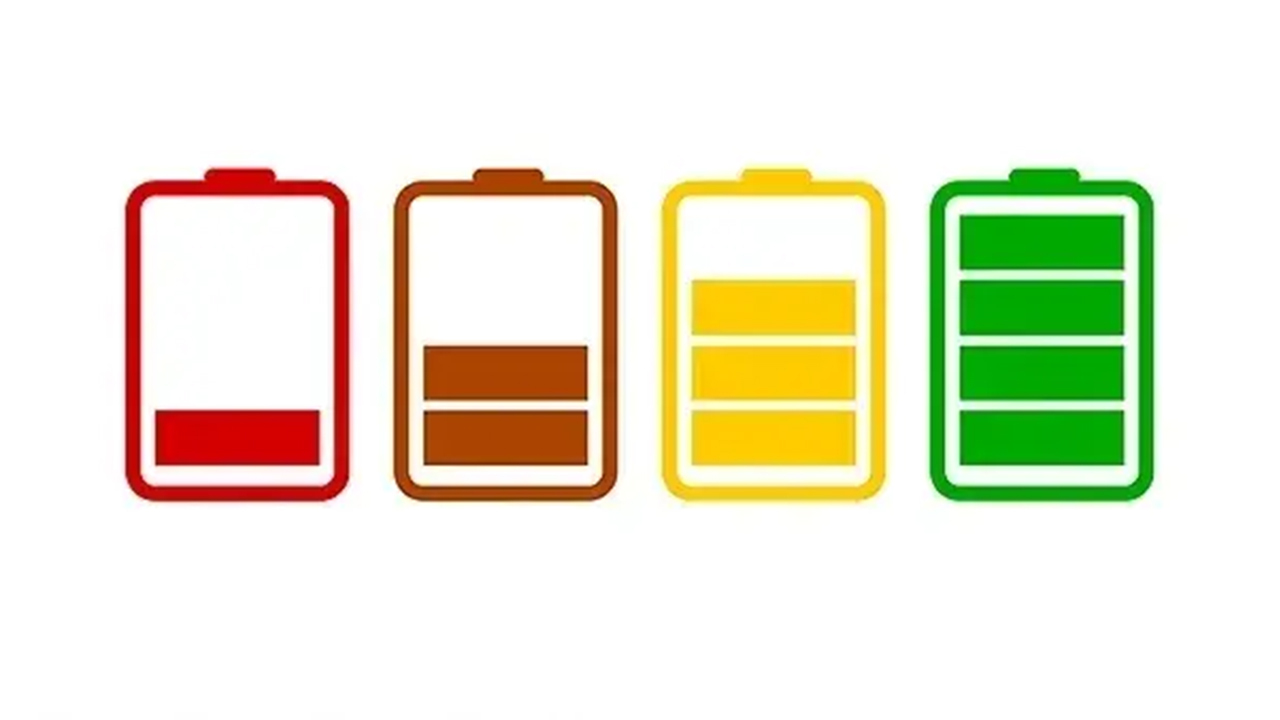
Tablets can sit unused for weeks and drain so low that they need time on a charger before anything appears on the screen. Plug the iPad into a wall adapter, not a computer USB port, and leave it alone for at least 30 minutes. A computer port often delivers too little power to revive a deeply drained battery.
A frayed cable or a weak third-party charger can look plugged in while delivering almost nothing. Try a different cable and a known-good wall adapter. On newer iPads that use USB-C, make sure you're not mixing in a data-only cable that doesn't support charging well.
A charging symbol, a battery icon or a warm spot near the charging port means power is getting in even if the screen stays dark. If nothing happens after a solid charge attempt, move on to a force restart.
A force restart clears temporary software freezes without deleting your data. The steps depend on which iPad you have.
Quickly press and release the volume button closest to the top button, then quickly press and release the other volume button, then press and hold the top button until the Apple logo appears.
Press and hold the top button and the Home button together until the Apple logo appears, then release.
If the logo shows and the tablet boots, update the software when you can and keep an eye on whether it freezes again.
The same ideas apply: charge with a known-good cable and wall adapter, then try the manufacturer's force-restart combo (often holding Power and Volume Down for a set number of seconds). Check the manual or the maker's support site for your exact model if you're unsure.
Some situations are unsafe to keep troubleshooting at home:
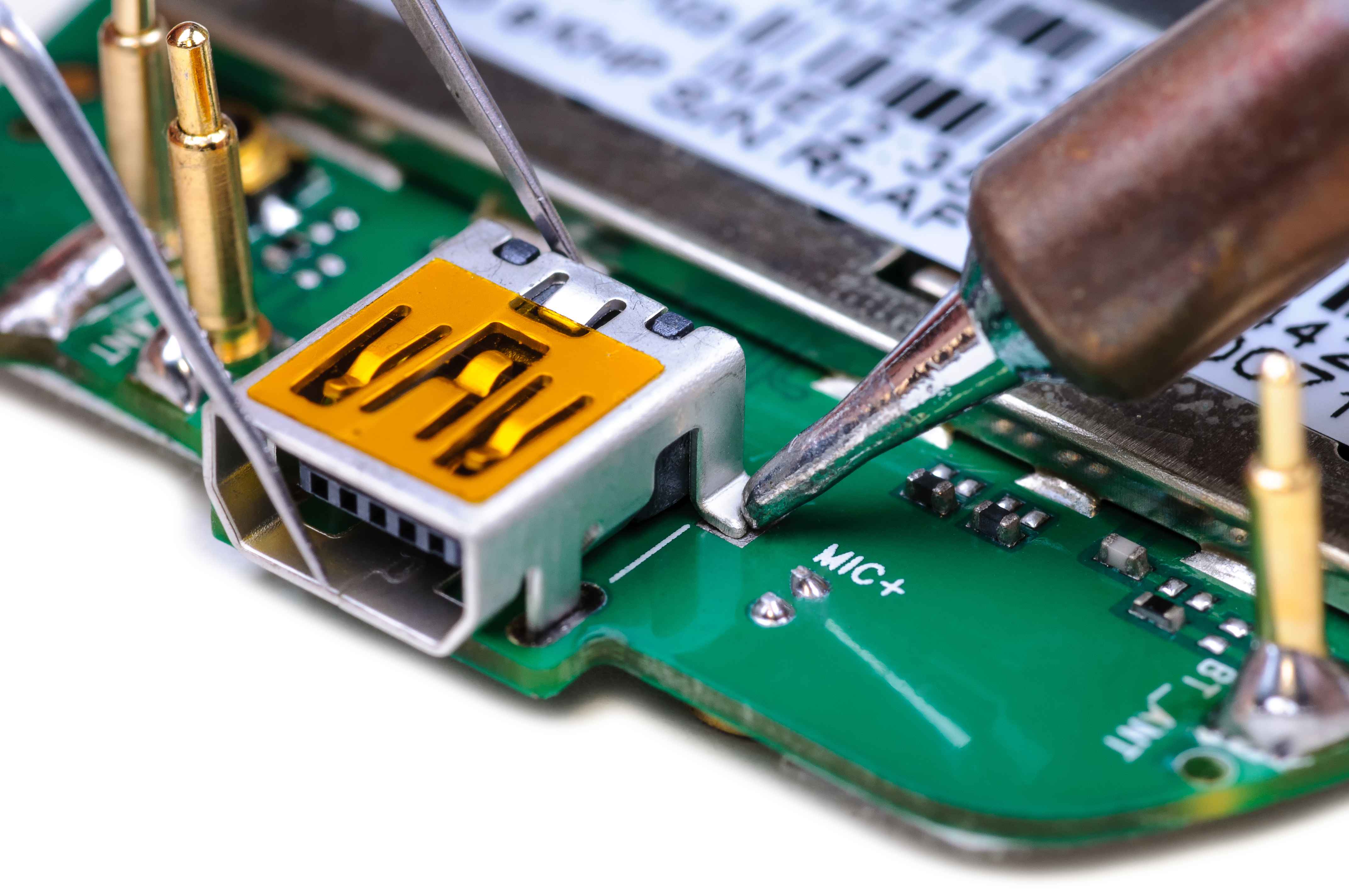
If charging and a force restart don't bring the iPad back, the issue may be the battery, charging port, display, logic board or software that needs a deeper look. Our team handles tablets alongside phones, and if the screen stays dark but your photos and files matter most, our data recovery service focuses on getting that information off when possible.
You can start with phone and device repair or request a quote online so we know what you're dealing with before you visit.
We Fix Phones N More is happy to take a look at a tablet that won't power on. Visit us at 801 County Line Rd in Horsham, call 215-323-4750, or send a quote request. We'll tell you what we find and what the realistic options are, including our 90-day repair warranty when a repair applies.


Copyright © 2026 We Fix Phones N More. All rights reserved.