.jpeg)
An old phone still has value, whether you're trading it in, selling it or dropping it off at a shop. What you don't want to hand over is your photo library, saved passwords or the login that keeps Find My tied to your name. Deleting a few apps is not enough. You need a backup, a clean sign-out and a full factory reset.
Here's the order we recommend at We Fix Phones N More so your data stays yours.
Once you erase the phone, recovery gets much harder. Make sure the important pieces are somewhere safe.
On iPhone, confirm iCloud Photos is up to date, or copy the camera roll to a computer. On Android, check Google Photos or copy files to a computer. Open a few albums and make sure recent shots actually synced. Cloud backups can lag if the phone was low on storage or on weak Wi-Fi.
Contacts usually ride along with your Apple or Google account, but local contacts and text threads may not. Sync or export anything that lives only on the device. If you rely on WhatsApp or similar apps, use their in-app backup before you wipe.
Move authenticator accounts to your new phone first. The same goes for password managers with a local vault. Losing that second factor after a wipe is an avoidable headache.
A factory reset is not always enough if the phone is still linked to an account lock. Buyers and trade-in counters often reject devices that still show Find My or a Google Factory Reset Protection prompt.
Go to Settings, tap your name, and sign out. Turn off Find My iPhone when prompted. If you skip this, Activation Lock can stay tied to your Apple ID even after someone erases the phone. That protects you from theft, but it also blocks a legitimate buyer until you unlock it.
Remove your Google account from Settings, and sign out of Samsung or other accounts you use. On many Android phones, Factory Reset Protection will ask for the previous Google login after a wipe if you skip the sign-out. Take care of it while you still have the phone and know the password.
Unpair your watch, earbuds and car kits so they aren't trying to reconnect after the phone has a new owner.
Pop out the SIM card. If your phone has a microSD card, remove that too. They're easy to forget in a trade-in envelope, and they can hold contacts or personal files.
After you're signed out, go to Settings, then General, then Transfer or Reset iPhone, and choose Erase All Content and Settings. Stay on Wi-Fi until it finishes. You should see a setup screen, as if the phone were new.
Look under Settings for Reset, Factory reset or Erase all data. Confirm when asked, and wait for the phone to reboot to the initial setup wizard. If it still asks for the old Google account, that account wasn't fully removed. Sign in and clear it properly before you hand the phone over.
Power the phone on. You should land on language or Wi-Fi setup with no passcode, no photos and no email. If anything from your old setup appears, erase it again before it leaves your possession. Carrier trade-in portals often ask for a clear photo of the reset screen or IMEI, so keep the phone on that setup screen if you need to document it.
Clearing the gallery does not remove app data, cached logins or downloaded documents. A factory reset returns the phone to a clean system state and, on modern devices, removes access to the old encrypted data. That's the standard you want when the next person isn't you.
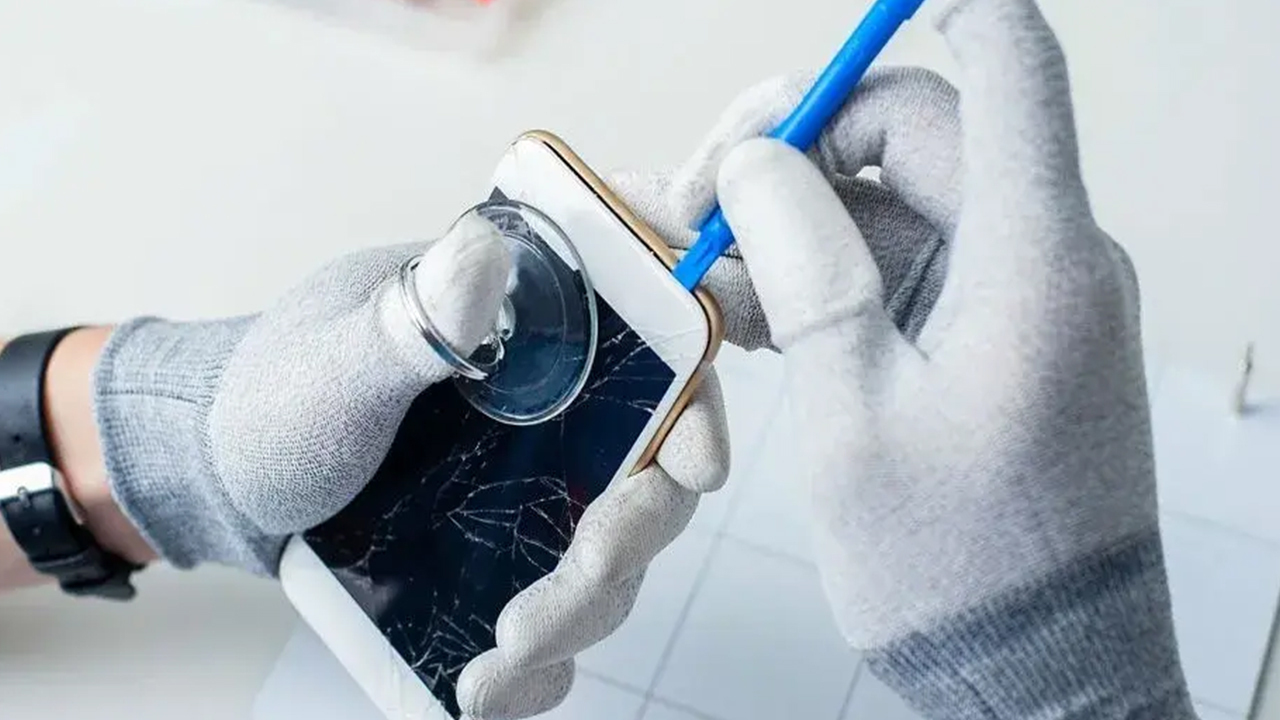
If a phone is broken and you can't get through the menus, don't guess. Ask for help before you sell it with your account still active. We can often help with data recovery questions or walk you through sign-out options when the screen or buttons still partially work.
Once the phone is wiped, you're ready to sell, trade or recycle it. We Fix Phones N More buys and sells devices as well as repairing them, so if you're upgrading you can ask about options on our buy and sell page. Whether you deal with us, a carrier or a private buyer, the same wipe steps apply.
We're at 801 County Line Rd in the Graeme Park Shopping Plaza, serving neighbors in Ambler, Maple Glen and Warrington. If you need help backing up or getting a stubborn account lock sorted before you sell, walk in Monday through Friday from 9am to 7pm or Saturday from 9am to 5pm, or call 215-323-4750. We're happy to help you wipe it the right way.


Copyright © 2026 We Fix Phones N More. All rights reserved.


.jpeg)