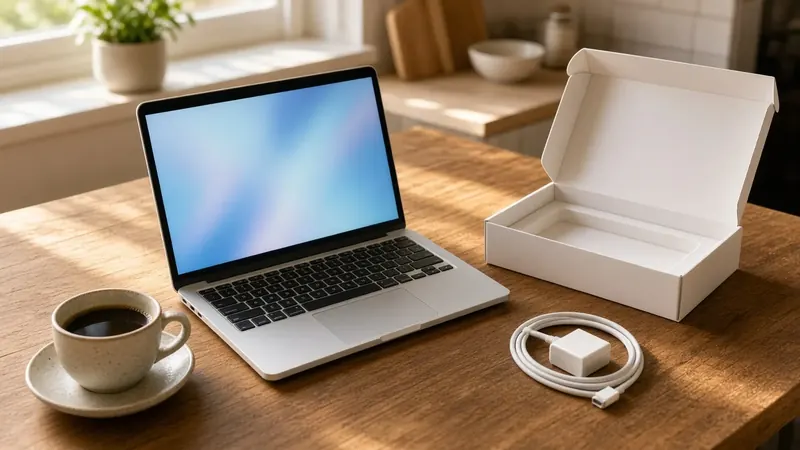
A new laptop is exciting, whether it's a holiday gift, a back-to-school purchase or a replacement for a computer that finally gave out. A little time spent on setup now makes it faster, safer and easier to live with for years.
Here's the checklist we recommend at We Fix Phones N More for both Windows laptops and MacBooks.
Plug the laptop into its charger and connect to your home Wi-Fi. Setup and updates can take a while, and you don't want the battery running out partway through. Have your passwords handy, especially for your Microsoft account, Apple Account, email and Wi-Fi.
A laptop may have been sitting in a warehouse for months, so it's probably behind on updates. Install them before anything else.
Open Settings, then Windows Update, and select Check for updates. Install everything, restart, and check again until no more updates appear. Many laptop makers also include their own update app for drivers and firmware, so run that too.
Open System Settings, then General, then Software Update. Install what's available and restart if asked.
Be wary of pop-ups that claim your new computer is already infected. Our guide to scam virus pop-ups explains how to spot them.
Many new Windows laptops come with trial software and apps you'll never use. Go to Settings, then Apps, and uninstall anything you don't recognize as useful. Be careful not to remove drivers or tools from your laptop's maker that handle things like the touchpad or audio. If you're unsure, leave it alone or ask us.
Also look at which apps start automatically. Fewer startup apps means a laptop that's ready to use faster each time you turn it on.
The best time to start backing up is before anything goes wrong. Choose at least one option:
Using both gives you the most protection. Drives don't always give much warning before they fail, as our post on hard drive warning signs explains.
If your old files are already in a cloud service, signing in on the new laptop may bring most of them over. Otherwise, copy your documents, photos, music and browser bookmarks to an external drive and then onto the new laptop. Macs include Migration Assistant for moving from an older Mac or a Windows PC.
Before you call it done, open a few important files on the new laptop to make sure they came over correctly.
Your files are often still on its drive. Our data recovery team can usually help get them off, even when the computer itself isn't worth fixing.
Don't toss an old computer in a drawer with your personal data still on it. Once you've confirmed everything is on the new laptop, sign out of your accounts and reset the old one. On Windows, use Reset this PC with the option to remove everything. On a Mac, use Erase All Content and Settings if your Mac offers it. If it still has life left, We Fix Phones N More buys and sells devices, so it may be worth bringing in.
If you'd rather not handle setup and file transfers yourself, or you run into trouble along the way, our computer repair technicians can help with Windows laptops and MacBooks. Visit We Fix Phones N More at 801 County Line Rd in Horsham, or call 215-323-4750.


Copyright © 2026 We Fix Phones N More. All rights reserved.